
Api Products Menu
Recurring transactions

Description

Payment gateway supports recurring transactions, allowing merchants of specific industries to perform future charges in their customer’s card, after having mutually agreed to do so.

Such cases could be a subscription to a service or a store or an agreement with a service provider for bill payments.

Recurring payments cannot co-exist with installments. Also, they are not compatible with digital wallets (Apple Pay/Google Pay), meaning that such wallets will not be available to complete a recurring transaction.

An established recurring scheme could either be executed at a specific frequency and with a specific amount (scheduled recurring – subsciptions) or at a frequency and/or with amount that will vary each time (unscheduled recurring – standing order).

In each case, the initial recurring transaction, must go through 3D authentication process.

The initial transaction cannot be refunded/voided in order for the subsequent transactions to be executed.

Token is not necessary for the execution of a subsequent (child) recurring transaction, so there is no need for tokenization (store card) during the initial (master) recurring transaction.
Scheduled recurring - subscriptions

The first category of recurring transactions is the scheduled recurring transactions or subscriptions.

The initiation of a scheduled recurring scheme is made with the execution of a master recurring transaction that will necessarily go through 3D authentication process. For that purpose, the master transaction can be performed using any of the below methods.

  • Redirection
  • Payment Link
  • Direct integration

At that initial transaction, merchant sets the frequency of the subsequent (child) transactions and the end date of their execution.

The respective documentation of each method can be found at:

Redirection: https://developer.cardlink.gr/api_products_categories/redirect-integration/#Redirection
Payment Link: https://developer.cardlink.gr/documentation_categories/recurring-transactions#Recurring-through-Payment-Link
Direct integration: https://developer.cardlink.gr/api_products_categories/direct-integration/#VPOS-XML-2.1/4.1  and https://developer.cardlink.gr/api_products_categories/direct-integration/#MPI-(3D-authentication)-Interface-v4 (requires log in)

Master transaction needs to be successful for the recurring scheme to be established.

Each child transaction will be automatically executed through the payment gateway based on the originally set frequency and until the originally set end date.
The amount of each child transaction is the same as the on of the master transaction and cannot be altered.

In case a child transaction is rejected, the payment gateway proceeds with 2 more retries within the same day. The attempts are made at 07:00, 15:00 and 23:00. If all 3 attempts are rejected, then that specific sequence of the recurring scheme is abandoned and payment gateway will process the next one based on the frequency.

Merchant has two options to receive a response message of each child transaction:

  1. To a URL that will be set in the field “Recurring notify url" of the test app.
  2. Through webhooks. Up to 5 URLs can be set to receive the XML response message. Configuration can be made through “Enable Webhooks" section of the test app.

    Note:
    The above configuration is not automatically set to the respective production MID when activated.

Scheduled recurring transactions that were initially executed more than 18 months ago (in production environment) and are passed their end date, are cleaned up from the database and are no longer visible and accessible.

Master transaction needs to have status CAPTURED to be able to execute a child transaction.
If you have executed a cancellation or a refund (full or partial) to the master recurring, then no child transaction can be executed and the subscription has to be set from the beginning.

Unscheduled recurring - standing order

The second category of recurring transactions is the unscheduled recurring transactions or standing orders.

The initiation of a scheduled recurring scheme is made with the execution of a master recurring transaction that will necessarily go through 3D authentication process. For that purpose, the master transaction can be performed using any of the below methods.

  • Redirection
  • Payment Link
  • Direct integration

At that initial transaction, merchant sets an indicative frequency of the subsequent (child) transactions and end date of their execution. The respective fields are mandatory for a recurring transaction and cannot be omitted.

Along with those parameters, it is necessary to also send value “rcauto=false" within a var parameter of the request, usually at var6. That value is crucial for the payment gateway not to automatically execute the subsequent (child) transactions.

Redirection: https://developer.cardlink.gr/api_products_categories/redirect-integration/#Redirection
Payment Link: https://developer.cardlink.gr/documentation_categories/recurring-transactions#Recurring-through-Payment-Link
Direct integration: https://developer.cardlink.gr/api_products_categories/direct-integration/#VPOS-XML-2.1/4.1  and https://developer.cardlink.gr/api_products_categories/direct-integration/#MPI-(3D-authentication)-Interface-v4 (requires log in)

Master transaction needs to be successful for the recurring scheme to be established.

Given that the payment gateway does not automatically execute the child transactions, each of them need to be initiated from the merchant.
There are 2 options to achieve that:

  1. Through XML API. Check that option when activating unscheduled recurring transactions in the test app. You may find the respective documentation at https://developer.cardlink.gr/api_products_categories/direct-integration/#VPOS-XML-2.1/4.1
  2. Through mass file. Check that option when activating unscheduled recurring transactions in the test app. That will send a notification to our customer support who will create a test user for the back office tool of the payment gateway, through which you will upload each file. You may find the respective documentation at https://developer.cardlink.gr/uat/documentation_categories/recurring/#Mass-files. You can also download a sample mass file here

If a subsequent transaction is rejected, then the merchant needs to initiate it again with one of the above ways.

Unscheduled recurring transactions that were initially executed more than 24 months ago (in production environment), are passed their end date and they have no child transaction for more than 24 months, are cleaned up from the database, are no longer visible or accessible and no new child transaction can be initiated.

Master transaction needs to have status CAPTURED to be able to execute a child transaction.
If you have executed a cancellation or a refund (full or partial) to the master recurring, then no child transaction can be executed and the standing order has to be set from the beginning.

Cancel recurring scheme

Merchant has the option to cancel a recurring scheme.

For both scheduled and unscheduled recurring schemes, there are 2 common ways to cancel.

  1. By pressing “Cancel recurring" within the master recurring transaction through back office tool.
  2. Through XML API. You may find the respective documentation at https://developer.cardlink.gr/api_products_categories/direct-integration/#VPOS-XML-2.1/4.1.

Important: Once a master recurring is cancelled, no other child transaction can be executed.

Especially for unscheduled recurring, given that child transactions are merchant initiated, a type of cancelation would be to stop sending child transactions to the payment gateway for a specific master transaction.
Recurring through Payment Link (XML API)

Recurring transactions can be initiated through XML API.

The general structure of the respective XML request structure can be found at https://developer.cardlink.gr/api_products_categories/direct-integration/#VPOS-XML-2.1/4.1.

Below you may find sample requests for scheduled and unscheduled master recurring transactions through XML API Payment Link.

Scheduled master recurring

Request

XML
<?xml version="1.0" encoding="UTF-8" standalone="yes"?>
<VPOS xmlns="http://www.modirum.com/schemas/vposxmlapi41" xmlns:ns2="http://www.w3.org/2000/09/xmldsig#">
	<Message version="2.1" messageId="M1751534706889" timeStamp="2025-07-03T12:25:06.889+03:00">
		<PaymentLinkRequest>
			<Authentication>
				<Mid>0101118297</Mid>
			</Authentication>
			<OrderInfo>
				<OrderId>1751534650127</OrderId>
				<OrderDesc></OrderDesc>
				<OrderAmount>14.0</OrderAmount>
				<Currency>EUR</Currency>
				<PayerEmail>simos.siatis@worldline.com</PayerEmail>
			</OrderInfo>
			<PaymentInfo>
				<RecurringIndicator>R</RecurringIndicator>
				<RecurringParameters>
					<ExtRecurringfrequency>7</ExtRecurringfrequency>
					<ExtRecurringenddate>20261231</ExtRecurringenddate>
				</RecurringParameters>
			</PaymentInfo>
			<TxType>PAYMENT</TxType>
			<LinkValidityDays>5</LinkValidityDays>
			<MailLinkIfValidMail>true</MailLinkIfValidMail>
		</PaymentLinkRequest>
	</Message>
	<Digest>9tNmqUvDH/YhIybtNPBp59frLOOmL6UHxwpvTs5xHsM=</Digest>
</VPOS>

Canonicalized part

XML
<Message xmlns="http://www.modirum.com/schemas/vposxmlapi41" xmlns:ns2="http://www.w3.org/2000/09/xmldsig#" messageId="M1751534706889" timeStamp="2025-07-03T12:25:06.889+03:00" version="2.1">
	<PaymentLinkRequest>
		<Authentication>
			<Mid>0101118297</Mid>
		</Authentication>
		<OrderInfo>
			<OrderId>1751534650127</OrderId>
			<OrderDesc></OrderDesc>
			<OrderAmount>14.0</OrderAmount>
			<Currency>EUR</Currency>
			<PayerEmail>simos.siatis@worldline.com</PayerEmail>
		</OrderInfo>
		<PaymentInfo>
			<RecurringIndicator>R</RecurringIndicator>
			<RecurringParameters>
				<ExtRecurringfrequency>7</ExtRecurringfrequency>
				<ExtRecurringenddate>20261231</ExtRecurringenddate>
			</RecurringParameters>
		</PaymentInfo>
		<TxType>PAYMENT</TxType>
		<LinkValidityDays>5</LinkValidityDays>
		<MailLinkIfValidMail>true</MailLinkIfValidMail>
	</PaymentLinkRequest>
</Message>

Response

XML
<?xml version="1.0" encoding="UTF-8" standalone="yes"?>
<VPOS xmlns="http://www.modirum.com/schemas/vposxmlapi41" xmlns:ns2="http://www.w3.org/2000/09/xmldsig#">
	<Message version="2.1" messageId="M1751534706889" timeStamp="2025-07-03T12:25:07.125+03:00">
		<PaymentLinkResponse>
			<OrderId>1751534650127</OrderId>
			<OrderAmount>14.0</OrderAmount>
			<Currency>EUR</Currency>
			<PaymentTotal>14.0</PaymentTotal>
			<Status>EXECWAIT</Status>
			<TxId>92639558771831</TxId>
			<Description>OK, link created mailed</Description>
			<PaymentLink>https://ecommerce-test.cardlink.gr/vpos/Paylink/b5d1d56152eb2e7036a60727ad7aed47</PaymentLink>
			<LinkMailed>true</LinkMailed>
		</PaymentLinkResponse>
	</Message>
	<Digest>nrk6wzgJMX+ktj4eE4iSm8iAQGE5IbpU9fR2hzp9z1w=</Digest>
</VPOS>

Unscheduled master recurring

Request

XML
<?xml version="1.0" encoding="UTF-8" standalone="yes"?>
<VPOS xmlns="http://www.modirum.com/schemas/vposxmlapi41" xmlns:ns2="http://www.w3.org/2000/09/xmldsig#">
	<Message version="2.1" messageId="M1751535012072" timeStamp="2025-07-03T12:30:12.072+03:00">
		<PaymentLinkRequest>
			<Authentication>
				<Mid>0101118297</Mid>
			</Authentication>
			<OrderInfo>
				<OrderId>1751534706660</OrderId>
				<OrderDesc></OrderDesc>
				<OrderAmount>24.0</OrderAmount>
				<Currency>EUR</Currency>
				<PayerEmail>simos.siatis@worldline.com</PayerEmail>
				<Var6>rcauto=false</Var6>
			</OrderInfo>
			<PaymentInfo>
				<RecurringIndicator>R</RecurringIndicator>
				<RecurringParameters>
					<ExtRecurringfrequency>7</ExtRecurringfrequency>
					<ExtRecurringenddate>20261231</ExtRecurringenddate>
				</RecurringParameters>
			</PaymentInfo>
			<TxType>PAYMENT</TxType>
			<LinkValidityDays>5</LinkValidityDays>
			<MailLinkIfValidMail>true</MailLinkIfValidMail>
		</PaymentLinkRequest>
	</Message>
	<Digest>MfpgWLGLhZE6qcbe7fy14nrhwUlgCwJ7zBfBkalSRs4=</Digest>
</VPOS>

Canonicalized part

XML
<Message xmlns="http://www.modirum.com/schemas/vposxmlapi41" xmlns:ns2="http://www.w3.org/2000/09/xmldsig#" messageId="M1751535012072" timeStamp="2025-07-03T12:30:12.072+03:00" version="2.1">
	<PaymentLinkRequest>
		<Authentication>
			<Mid>0101118297</Mid>
		</Authentication>
		<OrderInfo>
			<OrderId>1751534706660</OrderId>
			<OrderDesc></OrderDesc>
			<OrderAmount>24.0</OrderAmount>
			<Currency>EUR</Currency>
			<PayerEmail>simos.siatis@worldline.com</PayerEmail>
			<Var6>rcauto=false</Var6>
		</OrderInfo>
		<PaymentInfo>
			<RecurringIndicator>R</RecurringIndicator>
			<RecurringParameters>
				<ExtRecurringfrequency>7</ExtRecurringfrequency>
				<ExtRecurringenddate>20261231</ExtRecurringenddate>
			</RecurringParameters>
		</PaymentInfo>
		<TxType>PAYMENT</TxType>
		<LinkValidityDays>5</LinkValidityDays>
		<MailLinkIfValidMail>true</MailLinkIfValidMail>
	</PaymentLinkRequest>
</Message>

Response

XML
<?xml version="1.0" encoding="UTF-8" standalone="yes"?>
<VPOS xmlns="http://www.modirum.com/schemas/vposxmlapi41" xmlns:ns2="http://www.w3.org/2000/09/xmldsig#">
	<Message version="2.1" messageId="M1751535012072" timeStamp="2025-07-03T12:30:12.254+03:00">
		<PaymentLinkResponse>
			<OrderId>1751534706660</OrderId>
			<OrderAmount>24.0</OrderAmount>
			<Currency>EUR</Currency>
			<PaymentTotal>24.0</PaymentTotal>
			<Status>EXECWAIT</Status>
			<TxId>92639558771851</TxId>
			<Description>OK, link created mailed</Description>
			<PaymentLink>https://ecommerce-test.cardlink.gr/vpos/Paylink/d04d223939c2abd898d80e9e193fece8</PaymentLink>
			<LinkMailed>true</LinkMailed>
		</PaymentLinkResponse>
	</Message>
	<Digest>XcTuK19Q1ctkIpdY5A35LroSz0fLPyITVfZMhiYQd+M=</Digest>
</VPOS>

Recurring through Payment Link (Back Office tool)

Introduction

The below guide describes Payment Links functionality.

General

Payment Links allow merchants to execute e-commerce transactions, without any technical integration with Cardlink’s payment gateway. For that purpose, merchant uses the Back Office tool where the Payment Links are created and/or sent.

Payment Links are ideal for accepting payments through:

  • Sales through phone or e-mail
  • Sales through other channels (social media, SMS, Viber etc.)

How Payment Links work in 4 steps:

  1. Merchant agrees with the customer to proceed with a transactions for a specific amount, using a Paymene Link the customer will receive through the desired channel (e-mail, Viber, etc.)
  2. Merchant creates the Payment Link through Back Office toole.
  3. As a final step, merchant chooses whether to send the Payment Link through e-mail or copy it and send it in a different way.
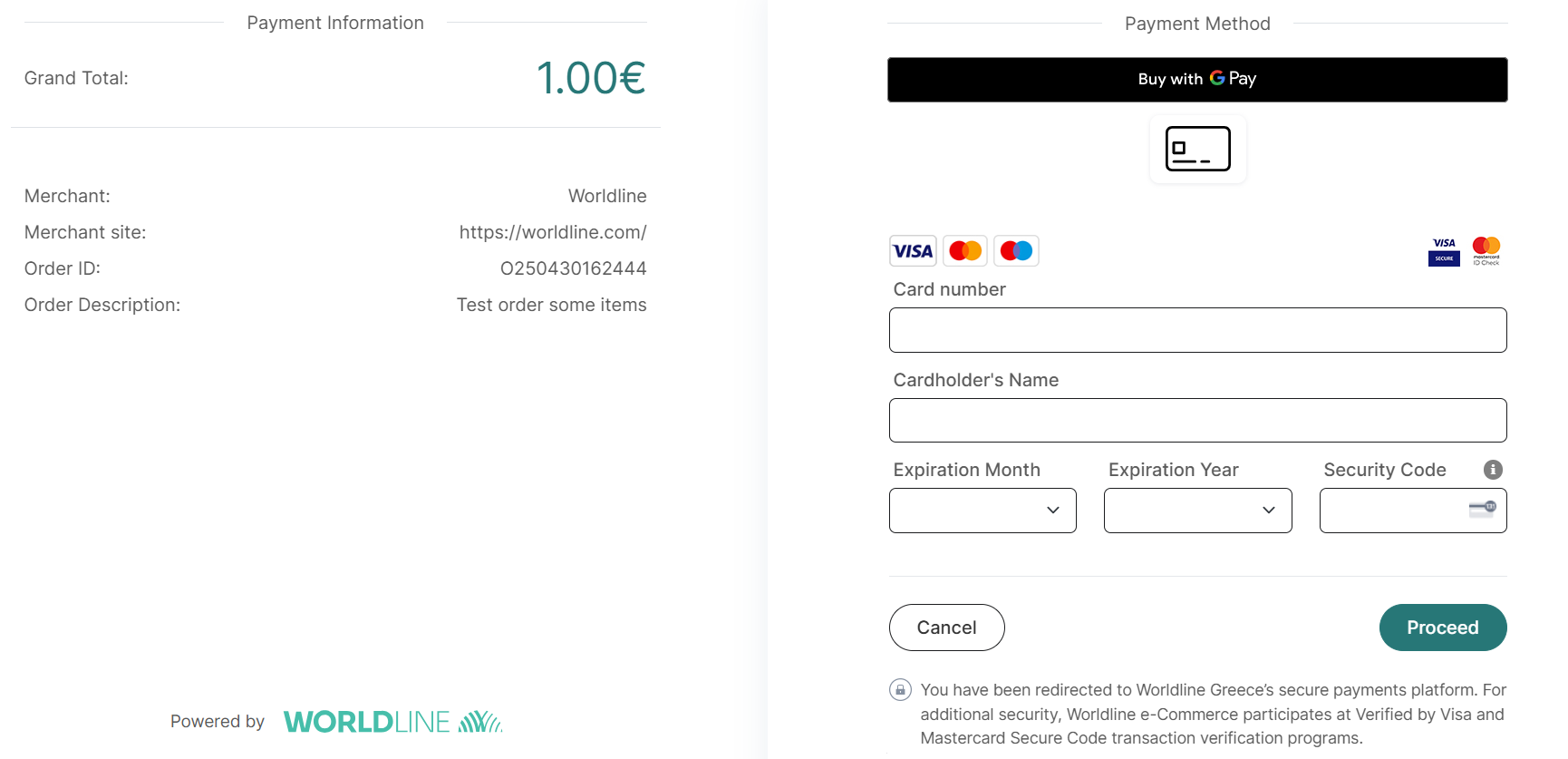
  4. Customer receives the Payment Link, opens it and is redirected to the respective payment page, in which he/she completes the transaction.

Getting started with the creation of the Payment Link

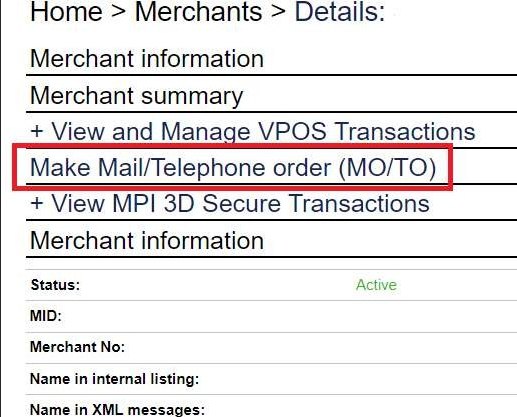
Log in to the back office tool using the credentials sent to you and choose “Make Mail/Telephone order (Mo/To)”.


Send the Payment Link to the customer

There are 2 options for that:

  1. Send it directly to an e-mail address through back office tool
  2. Create (Generate) Payment Link and copy it to send it with a different way, using your template

Send Payment Link directly to e-mail

To send the Payment Link directly to an e-mail follow the below steps:

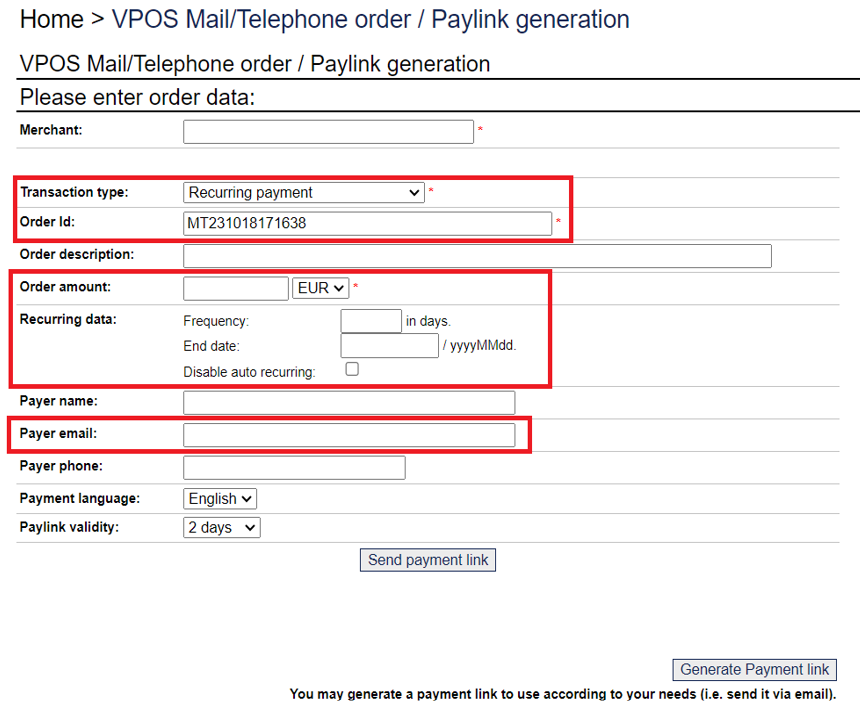
1.When in “Make Mail/Telephone order (Mo/To)” menu, fill in all the below necessary fields:

  1. Transaction type: Always “Recurring payment”
  2. Order Id: Keep the prefilled value.
  3. Order Amount
  4. Recurring data: Fill in fields Frequency and End date. Checkbox “Disable auto recurring” has to be checked if the transaction is for a standing order (unscheduled recurring).
  5. Payer email

And any other optional field you desire.

2.In “Paylink validity” field, you can set the days the link will remain active

3.Click on “Send payment link”.

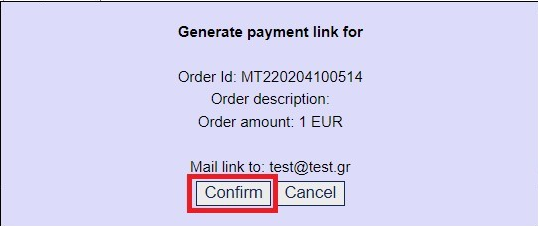
4.In the pop up window press “Confirm”

5.The Payment Link has been sent to your customer

Note: Supported languages are English and Greek. You can choose the language through “Payment language” field.

Cardlink’s e-mail template

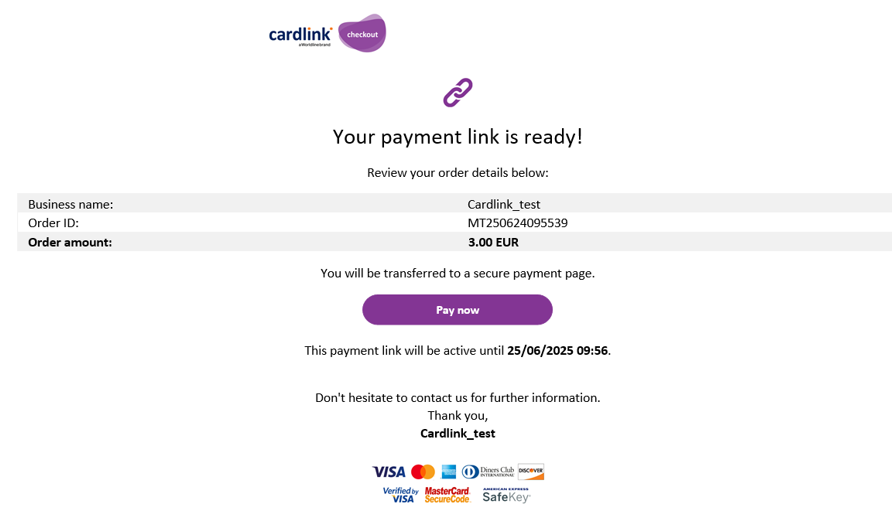
The e-mail that is sent to your customer looks like the below.


Merchant name, URL, amount and order id are dynamically filled in.

Create (Generate) Payment Link and manual dispatch

In order to manually send the Payment Link using a different channel and/or template, follow the below steps.

1.When in “Make Mail/Telephone order (Mo/To)” menu, fill in all the below necessary fields:

  1. Transaction type: Always “Recurring payment”
  2. Order Id: Keep the prefilled value.
  3. Order Amount
  4. Recurring data: Fill in fields Frequency and End date. Checkbox “Disable auto recurring” has to be checked if the transaction is for a standing order (unscheduled recurring).
  5. Payer email

And any other optional field you desire.


2.In “Paylink validity” field, you can set the days the link will remain active

3.Click on “Generate payment link”


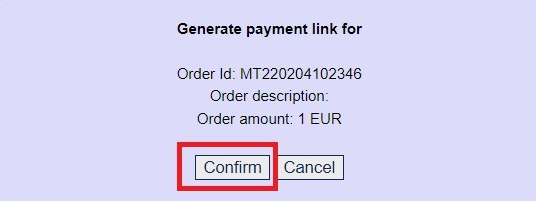
4.In the pop up window press “Confirm”


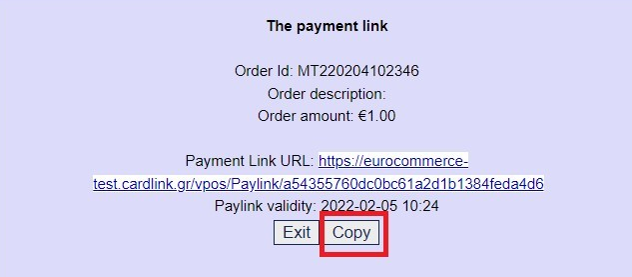
5.In the next pop up window press “Copy”


6.Paste the link to any other means you desire to send it to your customer

How to handle Payment Links

You are able to cancel or resend an already created Payment Link.

Cancel a Payment Link

In case you want to cancel a Payment Link so your customer will not be able to use it:

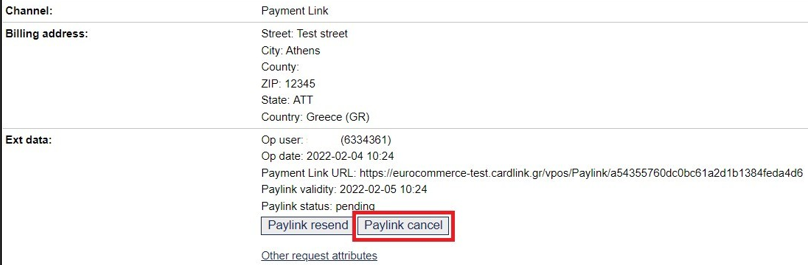
  1. Find and select the respective transaction in back office tool
  2. Click at “Paylink cancel”


3. The Payment Link has now been cancelled and cannot be used

Resend a Payment Link

If you have directly sent through e-mail a payment link to your customer, you can resend it:

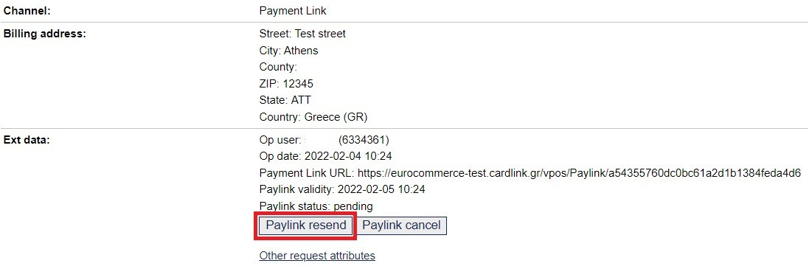
  1. Find and select the respective transaction in back office tool
  2. Click at “Paylink resend”
  3. The Payment Link has been resent to your customer


Payment Link transaction results

You can always be informed regarding the status of a Payment Link transaction with the below ways:

  1. Through “VPOS transactions” section in back office tool
  2. By receiving a notification e-mail after a successful Payment Link transaction
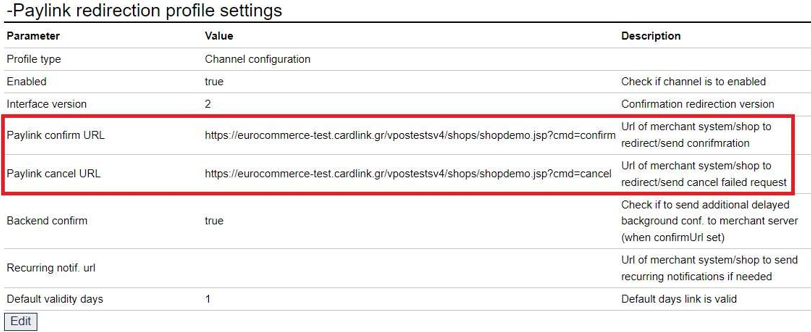
  3. Directly to your system if you have a site and have set confirm/cancel URLs.

Find a transaction in Back Office tool

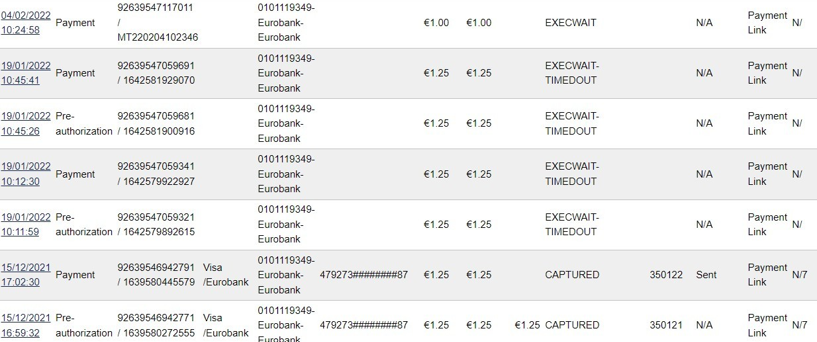
In order to find a Payment Link transaction, go to “VPOS Transactions” section and choose “Payment Link: option in field “Input Channel”.


You can easily check the Payment Link transaction’s status from the transactions menu, as per below.


Payment Link transaction’s status

A Payment Link transaction can (normally) get one of the following statuses.

STATUS DESCRIPTION
EXECWAIT Customer has not opened the Payment Link yet
PREPROCESS Payment Link is open and payment page has appeared
PREPROCESS-TIMEDOUT Transaction lifetime (30 minutes) has passed. Transaction has not been canceled
CANCELLED Transaction is canceled by the customer
INWALLET A digital wallet has been opened to complete the transaction
EXECWAIT-TIMEDOUT The Payment Link has expired without having been opened

Receive response message directly to your system

If you have a website, then you can set respective URLs to receive online the response message when a payment link transaction is completed.
To achieve that, your system should be able to handle the response messages as described at https://developer.cardlink.gr/api_products_categories/redirect-integration/#Redirection (table “Return message POST to inform merchant shop about payment success or failure”).


Success / Fail pages

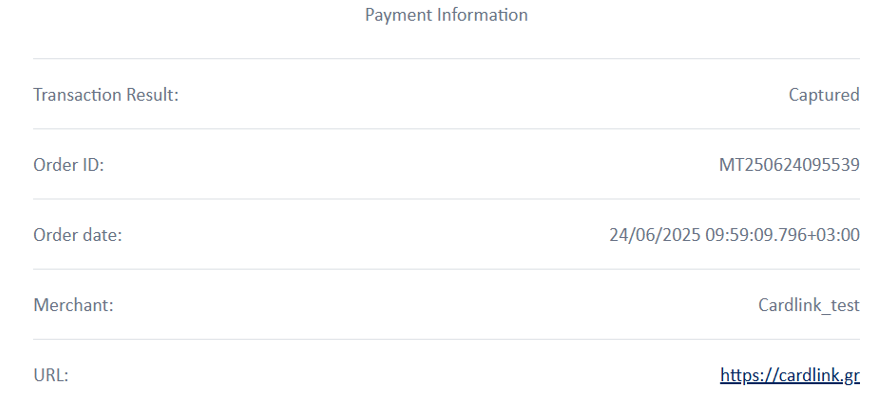
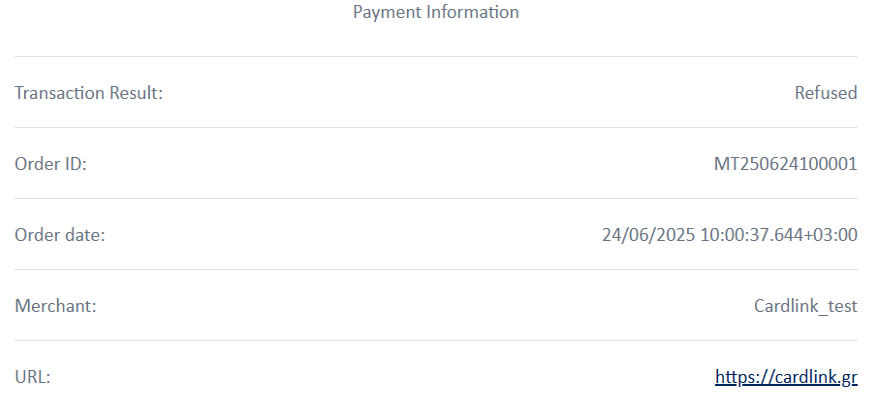
If you have not set your own return pages, then the default pages the customer will return to are as follows.


More features

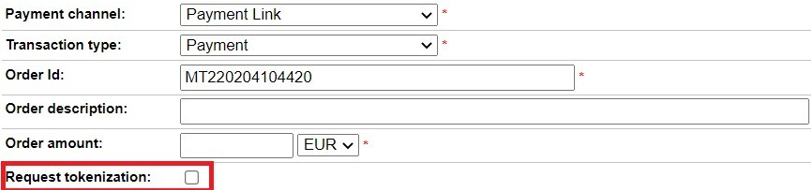
Tokenization


If the merchant has set specific return URLs and the MID is respectively configured, then the customer’s card can be saved (Tokenization) and a token value can be returned to the success URL.

The next time the same customer will make a purchase through the e-shop, then that token could be used for faster check out.

Note that the token cannot be used in a future payment link transaction.
Mass files

Mass Payments

This manual describes the execution of unscheduled recurring child transactions through mass file in Cardlink Payment Gateway.

Mass file creation

The mass file should have the below format.

Name of the mass file: We recommend the name of the file to have the following format: MerchantID+YYYYMMDD+3digitsserialNumber.txt
For example: 6111111120170525001.txt
The name could also be alphanumeric.

Mass file structure:

The mass file should have specific layout to be executed successfully. The layout should be as follows:

File Header
Detailed Record
Detailed Record
Detailed Record
File Trailer

Note: File Header and File Trailer should be unique for each file. Detailed Record lines can be as many as the merchant wishes, based on the amount of the transactions that need to be executed. In order for the file to be uploaded successfully, its size should not exceed 16MB.

The below table shows all the required and the optional elements a mass file should have.

Name of the field Required (R)
Optional (O)
Type Description
FileHeader
COS_HEAD_ID R CHAR (01) HEADER ID (ALWAYS EQUALS TO “0”)
COS_SEIRNO R CHAR (07) 08YYNNN   SERIAL NUMBER OF THE FILE
COS_HEADFIL1 R CHAR (02) EQUAL TO “08”
COS_CRDATE R NUMERIC (9(06)) CREATION DATE OF THE FILE (YYMMDD)
COS_CODECOSMO R CHAR (02) EQUAL  TO “08”
COS_ONOMETAIR R CHAR (20) MERCHANT NAME (SPACES UP TO 20 CHARS IF NAME IS SHORTER)
COS_CODENUMBER R CHAR (02) ALWAYS EQUALS TO “36”
COS_ONOMBANK R CHAR (20) WORLDLINE (SPACES UP TO 20 CHARS)
COS_HEADFIL2 R CHAR (08) ALWAYS EQUALS TO “00000000”
COS_MCODE R CHAR(30) MERCHANT ID variable length number right space padded to 30 chars, e.g. « 9999999                      «
COS_HEADFIL3 R CHAR (02) EQUAL TO “08”
COS_HMSYN R NUMERIC (9(06)) TRANSACTION DATE (YYMMDD)
COS_CURRCODE R CHAR (03) TRANSACTION CURRENCY CODE (EUR)
COS_HEADFIL4 R CHAR (14) FILLER (14 SPACES)
DetailRecord
COS_DETAIL_ID R CHAR (01) DETAIL RECORD ID (ALWAYS EQUALS TO “3”
COS_KATMA R NUMERIC (9(03)) ISSUER BANK BRANCH CODE (000)
COS_ARKART R CHAR (19) 19 SPACES
COS_SUBSCR R CHAR (19) 19 SPACES
COS_EXPDAT R NUMERIC (9(04)) 4 SPACES
COS_DETFIL1 R CHAR (01) FILLER 1 (1 SPACE)
COS_ARLOGAR R CHAR (16) 16 SPACES
COS_DETFIL2 R CHAR (18) FILLER 2 (18 SPACES)
COS_POSO R NUMERIC (9(07)V99) TRANSACTION AMOUNT  (in cents)
The format is 7digits (amount in Euros) + 2digits (Cents), e.g.   10.56Euros
COS_POSO=000001056
COS_DETFIL3 R CHAR (02) EQUAL TO “08”
COS_HMEGKR R NUMERIC (9(07)) AUTHORIZATION DATE  (YYYMMDD) equal to COS_HMSYN
It is the date that the merchants would like the  transactions to be authorized and settled. The format is YYYMMDD, e.g. for 2013 05 15 COS_HMEGKR=1130515 (Year 2013 is 113)
COS_KATOXSYMF R NUMERIC (9) 9 random digits
COS_CODEAPOR R CHAR (01) TRANSACTION COMPLETION CODE
Always Space in input file
trType R CHAR (01) Recurring child =’r’ For recurring child
COS_ARKART  and COS_EXPDAT shall be space and orderid must be orderid of valid and successful initial recurring.
Separator R CHAR(01) #NAME?
orderid R CHAR (50) Similar to VPOS (redirection, XML) please refer to https://developer.cardlink.gr/api-product/redirect/ or https://developer.cardlink.gr/api-product/direct/
Order id must be unique per record of each mass file.
Separator R CHAR(01) #NAME?
orderDesc O Char(128) Similar to VPOS (redirection, XML) please refer to https://developer.cardlink.gr/api-product/redirect/ or https://developer.cardlink.gr/api-product/direct/
Separator R CHAR(01) #NAME?
extInstallmentoffset O CHAR (03) NOT USED WITH RECURRING CHILD
Separator R CHAR(01) #NAME?
extInstallmentperiod O CHAR (03) NOT USED WITH RECURRING CHILD
Separator R CHAR(01) #NAME?
var1 O CHAR(255) Similar to VPOS (redirection, XML) please refer to https://developer.cardlink.gr/api-product/redirect/ or https://developer.cardlink.gr/api-product/direct/
Separator R CHAR(01) #NAME?
Var2 O CHAR(255) Similar to VPOS (redirection, XML) please refer to https://developer.cardlink.gr/api-product/redirect/ or https://developer.cardlink.gr/api-product/direct/
Separator R CHAR(01) #NAME?
Var3 O CHAR(255) Similar to VPOS (redirection, XML) please refer to https://developer.cardlink.gr/api-product/redirect/ or https://developer.cardlink.gr/api-product/direct/
Separator R CHAR(01) #NAME?
TrailerRecord
COS_TRAILLER_ID R CHAR (01) TRAILER RECORD ID (ALWAYS EQUALS TO “9”
COS_TOTTRANS R NUMERIC (9(05)) TOTAL NUMBER OF TRANSACTIONS = TOTAL NUMBER OF DETAIL RECORDS
COS_TOTAMNT R NUMERIC (9(10)V99) TOTAL TRANSACTIONS AMOUNT (in cents)
The format is 10digits (amount in Euros) + 2digits (Cents)
COS_TRAILFIL1 R CHAR (79) FILLER 3  (79 SPACES)
COS_ARXEIO R CHAR (03) EQUAL TO “DPF”

Mass file upload and execution

How to upload a file in Cardlink Payment Gateway

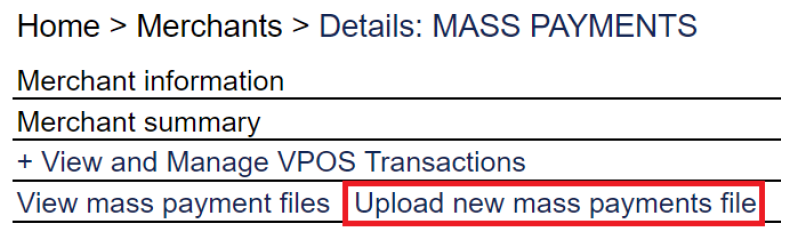
In the landing page of Back Office tool we choose “Upload new mass payments file”.


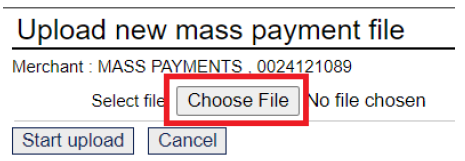
We will then be transferred to a page asking to choose the file we want to upload.


Once we choose the file we press “Start upload”.


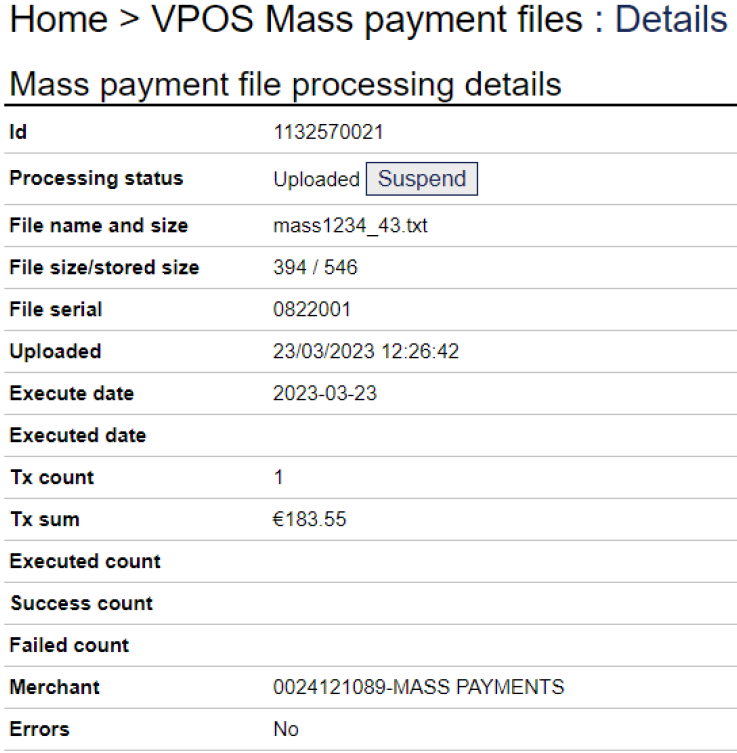
After the successful completion of the uploading, we will be transferred to the below page.


Mass file execution steps

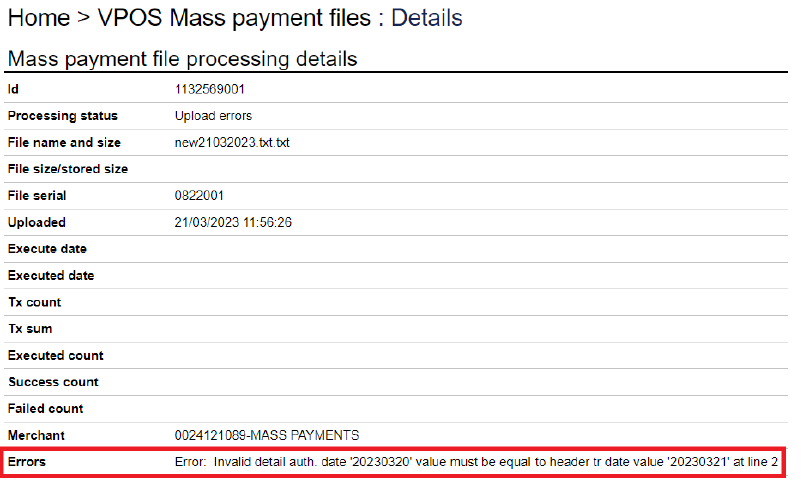
File upload: During the upload, the layout of the file is checked and if there are no issues, the upload is completed successfully. Otherwise, it turns to “Upload error".

File import: During that step, the transactions data are being checked. If those data are invalid, then the file cannot be imported and turns to status “Import error”. Error details provide further details about the error.


File execution: Given that upload and import have been completed successfully, then the actual execution of each transaction takes place.

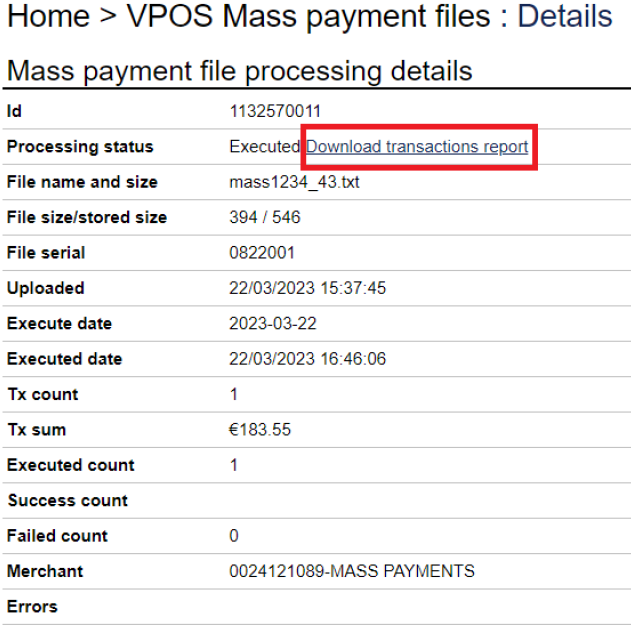
Executed file download: After the completion of the execution step, we are able to download the respective csv file containing all the executed transactions.


When each step occurs

A mass file can be uploaded whenever a user wishes to.

The import of the file takes place every hour at :10.
For example, a file that has been uploaded at 9:05, the import will occur at 9:10. If the upload takes place at 9:14, the import will be made at 10:10.

The execution of the file takes place every hour at :45.
For example, if file has been uploaded at 9:10, it will be executed at 9:45.

Sample recurring requests

XML Unscheduled recurring master

Request

<?xml version="1.0" encoding="UTF-8" standalone="yes"?><VPOS xmlns="http://www.modirum.com/schemas/vposxmlapi41" xmlns:ns2="http://www.w3.org/2000/09/xmldsig#"><Message version="2.1" messageId="M1750754652001" timeStamp="2025-06-24T11:44:12.001+03:00"><SaleRequest><Authentication><Mid>0101118297</Mid></Authentication><OrderInfo><OrderId>1750754595780</OrderId><OrderDesc></OrderDesc><OrderAmount>6.0</OrderAmount><Currency>EUR</Currency><Var6>rcauto=false</Var6></OrderInfo><PaymentInfo><PayMethod>visa</PayMethod><CardPan>4016360000000010</CardPan><CardExpDate>2512</CardExpDate><CardCvv2>756</CardCvv2><CardHolderName>Test</CardHolderName><RecurringIndicator>R</RecurringIndicator><RecurringParameters><ExtRecurringfrequency>7</ExtRecurringfrequency><ExtRecurringenddate>20300623</ExtRecurringenddate></RecurringParameters><ThreeDSecure><EnrollmentStatus>Y</EnrollmentStatus><AuthenticationStatus>Y</AuthenticationStatus><CAVV>AJkBAUhZRwAAAAJsl4NFdUBiUAk=</CAVV><XID>VlBPUzM0MDMxNzEtY2I0OTAyMDA=</XID><ECI>05</ECI><Protocol>3DS2.2.0</Protocol><Attribute name="TDS2.dsTransID">7205089f-7de2-50ab-8000-00000a4ef19d</Attribute></ThreeDSecure></PaymentInfo></SaleRequest></Message><Digest>J8EzVPX4nTUMlvFuYwlX1WDCizbO7sfKAYeW1gQlKpY=</Digest></VPOS>

Canonicalized

<Message xmlns="http://www.modirum.com/schemas/vposxmlapi41" xmlns:ns2="http://www.w3.org/2000/09/xmldsig#" messageId="M1750754652001" timeStamp="2025-06-24T11:44:12.001+03:00" version="2.1"><SaleRequest><Authentication><Mid>0101118297</Mid></Authentication><OrderInfo><OrderId>1750754595780</OrderId><OrderDesc></OrderDesc><OrderAmount>6.0</OrderAmount><Currency>EUR</Currency><Var6>rcauto=false</Var6></OrderInfo><PaymentInfo><PayMethod>visa</PayMethod><CardPan>4016360000000010</CardPan><CardExpDate>2512</CardExpDate><CardCvv2>756</CardCvv2><CardHolderName>Test</CardHolderName><RecurringIndicator>R</RecurringIndicator><RecurringParameters><ExtRecurringfrequency>7</ExtRecurringfrequency><ExtRecurringenddate>20300623</ExtRecurringenddate></RecurringParameters><ThreeDSecure><EnrollmentStatus>Y</EnrollmentStatus><AuthenticationStatus>Y</AuthenticationStatus><CAVV>AJkBAUhZRwAAAAJsl4NFdUBiUAk=</CAVV><XID>VlBPUzM0MDMxNzEtY2I0OTAyMDA=</XID><ECI>05</ECI><Protocol>3DS2.2.0</Protocol><Attribute name="TDS2.dsTransID">7205089f-7de2-50ab-8000-00000a4ef19d</Attribute></ThreeDSecure></PaymentInfo></SaleRequest></Message>

Response

<?xml version="1.0" encoding="UTF-8" standalone="yes"?><VPOS xmlns="http://www.modirum.com/schemas/vposxmlapi41" xmlns:ns2="http://www.w3.org/2000/09/xmldsig#"><Message version="2.1" messageId="M1750754652001" timeStamp="2025-06-24T11:44:12.592+03:00"><SaleResponse><OrderId>1750754595780</OrderId><OrderAmount>6.0</OrderAmount><Currency>EUR</Currency><PaymentTotal>6.0</PaymentTotal><Status>CAPTURED</Status><TxId>92639558728581</TxId><PaymentRef>144196</PaymentRef><RiskScore>0</RiskScore><Description>OK, CAPTURED response code 00</Description><Attribute name="EXTACQUIRERID">026</Attribute></SaleResponse></Message><Digest>bPVcSUDzgBmVOEs6AFNRY2Nvnf5LkcUul02Y7RvOv8s=</Digest></VPOS>

XML Unscheduled Recurring child – Same amount as master

Request

<?xml version="1.0" encoding="UTF-8" standalone="yes"?><VPOS xmlns="http://www.modirum.com/schemas/vposxmlapi41" xmlns:ns2="http://www.w3.org/2000/09/xmldsig#"><Message version="2.1" messageId="M1750754253118" timeStamp="2025-06-24T11:37:33.118+03:00"><RecurringOperationRequest><Authentication><Mid>0101118297</Mid></Authentication><TransactionInfo><OrderId>O250624113138</OrderId></TransactionInfo><Operation>RecurringChild</Operation></RecurringOperationRequest></Message><Digest>PdcPZ1GsM2VQdpd/qjJ0QD86HPr4xNPn5fNfU8hOXe4=</Digest></VPOS>

Canonicalized

<Message xmlns="http://www.modirum.com/schemas/vposxmlapi41" xmlns:ns2="http://www.w3.org/2000/09/xmldsig#" messageId="M1750754253118" timeStamp="2025-06-24T11:37:33.118+03:00" version="2.1"><RecurringOperationRequest><Authentication><Mid>0101118297</Mid></Authentication><TransactionInfo><OrderId>O250624113138</OrderId></TransactionInfo><Operation>RecurringChild</Operation></RecurringOperationRequest></Message>

Response

<?xml version="1.0" encoding="UTF-8" standalone="yes"?><VPOS xmlns="http://www.modirum.com/schemas/vposxmlapi41" xmlns:ns2="http://www.w3.org/2000/09/xmldsig#"><Message version="2.1" messageId="M1750754253118" timeStamp="2025-06-24T11:37:35.844+03:00"><RecurringOperationResponse><OrderId>O250624113138/2</OrderId><OrderAmount>47.0</OrderAmount><Currency>EUR</Currency><PaymentTotal>47.0</PaymentTotal><Status>CAPTURED</Status><TxId>92639558728481</TxId><Sequence>2</Sequence><PaymentRef>144187</PaymentRef><RiskScore>0</RiskScore><Description>OK, CAPTURED response code 00</Description><Attribute name="EXTACQUIRERID">026</Attribute></RecurringOperationResponse></Message><Digest>HZMCSV/1oqFzv+GURieViqQX/PTIqKe6MpXmb0OyO1I=</Digest></VPOS>

XML Unscheduled Recurring child – Different amount than master

Request

<?xml version="1.0" encoding="UTF-8" standalone="yes"?><VPOS xmlns="http://www.modirum.com/schemas/vposxmlapi41" xmlns:ns2="http://www.w3.org/2000/09/xmldsig#"><Message version="2.1" messageId="M1750754465043" timeStamp="2025-06-24T11:41:05.043+03:00"><RecurringOperationRequest><Authentication><Mid>0101118297</Mid></Authentication><TransactionInfo><OrderId>O250624113138</OrderId></TransactionInfo><Operation>RecurringChild</Operation><OrderInfo><OrderId>O250624113138</OrderId><OrderDesc></OrderDesc><OrderAmount>19.0</OrderAmount><Currency>EUR</Currency></OrderInfo></RecurringOperationRequest></Message><Digest>Gv/jUoHrNFfbOLgHFrokgtgKDp6wSoNfoOG9Moyjax0=</Digest></VPOS>

Canonicalized

<Message xmlns="http://www.modirum.com/schemas/vposxmlapi41" xmlns:ns2="http://www.w3.org/2000/09/xmldsig#" messageId="M1750754465043" timeStamp="2025-06-24T11:41:05.043+03:00" version="2.1"><RecurringOperationRequest><Authentication><Mid>0101118297</Mid></Authentication><TransactionInfo><OrderId>O250624113138</OrderId></TransactionInfo><Operation>RecurringChild</Operation><OrderInfo><OrderId>O250624113138</OrderId><OrderDesc></OrderDesc><OrderAmount>19.0</OrderAmount><Currency>EUR</Currency></OrderInfo></RecurringOperationRequest></Message>

Response

<?xml version="1.0" encoding="UTF-8" standalone="yes"?><VPOS xmlns="http://www.modirum.com/schemas/vposxmlapi41" xmlns:ns2="http://www.w3.org/2000/09/xmldsig#"><Message version="2.1" messageId="M1750754465043" timeStamp="2025-06-24T11:41:05.962+03:00"><RecurringOperationResponse><OrderId>O250624113138/3</OrderId><OrderAmount>19.0</OrderAmount><Currency>EUR</Currency><PaymentTotal>19.0</PaymentTotal><Status>CAPTURED</Status><TxId>92639558728531</TxId><Sequence>3</Sequence><PaymentRef>144191</PaymentRef><RiskScore>0</RiskScore><Description>OK, CAPTURED response code 00</Description><Attribute name="EXTACQUIRERID">026</Attribute></RecurringOperationResponse></Message><Digest>scYvskhcyMPTZwLeWY3l0sP0w+hnznypacPsj1BFe+A=</Digest></VPOS>

XML Payment Link Unscheduled recurring master

Request

<?xml version="1.0" encoding="UTF-8" standalone="yes"?><VPOS xmlns="http://www.modirum.com/schemas/vposxmlapi41" xmlns:ns2="http://www.w3.org/2000/09/xmldsig#"><Message version="2.1" messageId="M1750754849682" timeStamp="2025-06-24T11:47:29.682+03:00"><PaymentLinkRequest><Authentication><Mid>0101118297</Mid></Authentication><OrderInfo><OrderId>1750754653599</OrderId><OrderDesc></OrderDesc><OrderAmount>11.0</OrderAmount><Currency>EUR</Currency><PayerEmail>simos.siatis@worldline.com</PayerEmail><Var6>rcauto=false</Var6></OrderInfo><PaymentInfo><RecurringIndicator>R</RecurringIndicator><RecurringParameters><ExtRecurringfrequency>7</ExtRecurringfrequency><ExtRecurringenddate>20300623</ExtRecurringenddate></RecurringParameters></PaymentInfo><TxType>PAYMENT</TxType><LinkValidityDays>5</LinkValidityDays><MailLinkIfValidMail>true</MailLinkIfValidMail></PaymentLinkRequest></Message><Digest>gc39EQIvSf3Z+H+Sw/UECwv5Yf52OUD586RcsYqH8EE=</Digest></VPOS>

Canonicalized

<Message xmlns="http://www.modirum.com/schemas/vposxmlapi41" xmlns:ns2="http://www.w3.org/2000/09/xmldsig#" messageId="M1750754849682" timeStamp="2025-06-24T11:47:29.682+03:00" version="2.1"><PaymentLinkRequest><Authentication><Mid>0101118297</Mid></Authentication><OrderInfo><OrderId>1750754653599</OrderId><OrderDesc></OrderDesc><OrderAmount>11.0</OrderAmount><Currency>EUR</Currency><PayerEmail>simos.siatis@worldline.com</PayerEmail><Var6>rcauto=false</Var6></OrderInfo><PaymentInfo><RecurringIndicator>R</RecurringIndicator><RecurringParameters><ExtRecurringfrequency>7</ExtRecurringfrequency><ExtRecurringenddate>20300623</ExtRecurringenddate></RecurringParameters></PaymentInfo><TxType>PAYMENT</TxType><LinkValidityDays>5</LinkValidityDays><MailLinkIfValidMail>true</MailLinkIfValidMail></PaymentLinkRequest></Message>

Response

<?xml version="1.0" encoding="UTF-8" standalone="yes"?><VPOS xmlns="http://www.modirum.com/schemas/vposxmlapi41" xmlns:ns2="http://www.w3.org/2000/09/xmldsig#"><Message version="2.1" messageId="M1750754849682" timeStamp="2025-06-24T11:47:29.938+03:00"><PaymentLinkResponse><OrderId>1750754653599</OrderId><OrderAmount>11.0</OrderAmount><Currency>EUR</Currency><PaymentTotal>11.0</PaymentTotal><Status>EXECWAIT</Status><TxId>92639558728641</TxId><Description>OK, link created mailed</Description><PaymentLink>https://ecommerce-test.cardlink.gr/vpos/Paylink/46ae3ffc1279e8b8dc029ffd5d1fd40d</PaymentLink><LinkMailed>true</LinkMailed></PaymentLinkResponse></Message><Digest>Csw70m83QL8E5GVfNGWXcc822el/qQ6RUNPn6cTBXG0=</Digest></VPOS>

Digital wallets (for Worldline Greece)

Apple Pay

Introduction

Apple Pay is a digital wallet service by Apple Inc. that enables secure and seamless payments across supported devices, like iPhone, iPad, and Mac. Apple Pay is integrated within the payment page to offer customers a fast and convenient payment experience.

User Experience

Apple Pay provides a seamless and intuitive payment experience for customers. When users check out:

  1. They select the Apple Pay option at the payment page. 
  2. Their device prompts them to authenticate using Face ID, Touch ID, or a device passcode. 
  3. The payment details are securely transmitted to the merchant. 
  4. Upon successful transaction processing, the user receives confirmation instantly.

The entire process is designed for speed, security, and ease of use, reducing checkout friction and increasing conversion rates. 


Requirements / Restrictions

– Transaction types supported: Payment, Pre-authorization, Refunds, Void.
– Schemes supported: Visa, Mastercard.
– Acquirers supported: Apple Pay transactions are being processed only through Worldline acquirer.

Important notice 1: Apple does not natively support iframe-based payment processing, so Apple Pay is not supported when an iframe is used to display the payment page.

Important notice 2: Tokenization is not supported through Apple Pay.

How to test

From the merchant’s/developer’s side: You need to activate Apple Pay in a newly created or already existing app in Sandbox, so as the respective Apple Pay button to appear in the payment page when the transaction is executed through a compatible device (iOS).

That test merchant number (MID) will also be automatically registered to Apple.

From the customer’s side: Use the below test account in your iOS device.

Password: #skJu*79#@!@
Important notice: Please DO NOT activate two factor authentication (2FA) during log in.

Test cards: If not already included in the Apple Pay wallet, you should add some of the below.

Scheme/Type PAN Exp. Date CVC
Mastercard 5204245250460049 01/30 111
5204245250522095 01/30 111
5204245251107599 01/30 111
5204245253050839 01/30 111
5204245254718095 01/30 111
Visa Credit 4051069302200121 01/27 340
4761229700150465 01/27 175
4761209980011439 01/27 466
Visa Debit 4761120010000492 01/27 480
4761349750010326 01/27 982
4761262260004228 01/27 501
4761369980320253 01/27 878
4622943120054839 01/27 100
4180620070230189 01/27 111
4123400073320224 01/27 221

You can now choose the desired test card to complete the transaction.
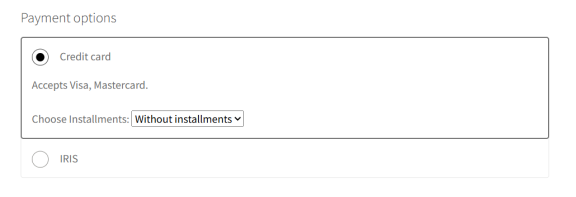
Google Pay™

Introduction

Google Pay™ is a digital wallet platform and online payment system that powers in-app, tap-to-pay, and website purchases. It allows users to make payments online from the web (supported on Google Chrome, Mozilla Firefox, Apple Safari, Microsoft Edge, Opera, and UCWeb UC browsers) and with Android phones, tablets and watches using any credit or debit card saved to their Google Account, including those from Google Play, YouTube, Chrome, or an Android device.

Some of the main benefits of offering Google Pay as a payment method are:

  • A better way to pay: Google Pay™ is a faster, more secure way to pay on sites and in apps using payment methods saved to a Google Account
  • Availability: Google Pay™ is accepted in millions of places around the world. It’s available on Android, iOS, and desktop, and you can use it in multiple browsers, including Chrome, Firefox, and Safari
  • Increased conversions: Google Pay™ delivers frictionless checkout by eliminating the need to type billing and shipping details, increasing conversions by giving shoppers a better way to pay
  • Increased security: Google Pay™ protects your payment information with multiple layers of security, including card network tokenization

User Experience 

Screenshots 

At the checkout, the customer selects the Google Pay™ button at the top of the screen:

The customer then signs into their Google account:


The customer selects their payment card before completing the payment:


Requirements / Restrictions

  • Transaction types supported: Payment, Pre-authorization, Refunds, Void.
  • Schemes supported: Visa, Mastercard.
  • Google Pay™ transactions are being processed only through Worldline acquirer.

Important notice: Tokenization is not supported through Google Pay™.

Google Pay for Android Webview

In case you wish to use Google Pay through Android app with Webview, you need to follow the steps described here.

You also need to clarify to Google that you wish to use Cardlink’s existing Google Pay integration through Webview and you are not trying to render a separate Google Pay button outside the payment page.

SCA and PSD2

Google Pay™ supports both CRYPTOGRAM 3DS and PAN ONLY. Cryptogram 3DS, which is a tokenized solution, will always be preferred. Most issuers will accept this as being SCA, and hence not result in the need for completion of 3D-Secure.

In case a non-tokenized solution is used (PAN ONLY) or the issuer declines the transaction for missing SCA, Cardlink’s payment gateway will automatically continue with the 3DS flow to ensure the payment can succeed. 3DS flow is by default enabled to all merchants.

All merchants must adhere to the Google Pay APIs Acceptable Use Policy and accept the terms defined in the Google Pay API Terms of Service.

Google Pay is a trademark of Google LLC.

How to activate Google Pay™

All merchants are by default activated to accept payments for Google Pay™. There is no need for any extra steps or implementation in their end. The respective button appears in the hosted payment page and is ready for use by the customer.

Testing Google Pay™

In order to test Google Pay™ functionality in the demo environment, you need to visit URL https://groups.google.com/g/googlepay-test-mode-stub-data from your browser in order to gain access to the respective test cards.

After that, those test cards will be available at the Google Pay™ account when you execute a transaction.
IRIS (for Worldline Greece)

IRIS payments

*To download the image, please right click on it and select ‘Save image as’.

IRIS Payments is a real-time payment service that allows users to initiate payments through their bank’s mobile app through QR code or online banking, in a secure, user-friendly environment.

Online shops integrate IRIS Payments to allow customers to pay directly from their bank accounts, bypassing the need for credit or debit cards.

IRIS in Redirect model

For Redirect integration method, IRIS is provided as an option within the payment page.

IRIS is available only for Payment (once off) transactions.

Refund action is not supported through e-commerce platform (API or back office) for IRIS transactions.

Please DO NOT use i-frame for IRIS transactions since there are issues with the connection to the respective e-banking. The connection through i-frame is blocked by the Banks.

Allowed characters you can use in parameter orderDesc (order description) are the below. If you use any other character that is not supported, IRIS transactions cannot proceed.

a b c d e f g h i j k l m n o p q r s t u v w x y z
A B C D E F G H I J K L M N O P Q R S T U V W X Y Z
0 1 2 3 4 5 6 7 8 9
/ – ? : ( ) . , ‘ +
Space
α ά β γ δ ε έ ζ η ή θ ι ί ϊ ΐ κ λ μ ν ξ ο ό π ρ σ ς τ υ ύ ϋ ΰ φ χ ψ ω ώ
Α Ά Β Γ Δ Ε Έ Ζ Η Ή Θ Ι Ί Ϊ Κ Λ Μ Ν Ξ Ο Ό Π Ρ Σ Τ Υ Ύ Ϋ Φ Χ Ψ Ω Ώ
= ! % * ; # _ $ \ { } [ ]

There is no need for further implementation since the IRIS option is automatically available in the payment page for the payer to choose. The only thing you should take into consideration, is that after a successful IRIS transaction, as part of the response message you will receive parameter payMethod with value ‘IRIS’, which is a new value (check also below).

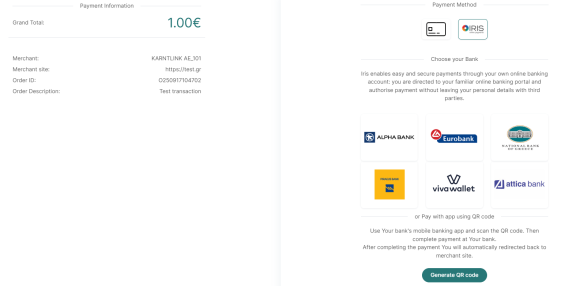
The only prerequisite is to use the latest payment page which looks like below. If you are using a custom css with changes in colors/shapes/font/logos, please confirm during your tests that IRIS remains functional (check below on how to make test payments with IRIS).


If you are using a different/older payment page, you need to follow the below steps:

1. Register and/or log in Sandbox and create a new application with Business partner: Worldline or Cardlink (based on your current payment page) and Integration method: Redirect.
2. Within the new app, go to section “Payment Page" and download the respective xsl/css files of the newest default payment page.
3. Custom those files the way you desire and upload them through the same section.

4. Once the custom payment page has been adjusted to your test mid, we will inform you to proceed with your tests.
5. Confirm through your tests the proper function of IRIS and let us know to adjust the new custom payment page to your production MID as well.

If you wish, you can provide IRIS as a separate payment method in your checkout page and declare that you wish the payment to be made through IRIS by using parameter payMethod=’IRIS’. By doing that, customer directly sees the page with Bank logos and QR generation.
After a successful IRIS transaction, in the response message you will receive the respective parameter payMethod=’IRIS’.

For further information, please check here.

Important notice: If you use one of our CMS plugins here, an updated version is available to support IRIS for Worldline or Cardlink business partner.

How to test IRIS functionality

To begin with, you need to enable IRIS during a new app creation or through an existing app modification.
During new app creation, choose Worldline as Business partner and Redirect or Redirect/Direct as Model.

Post the respective request – using parameter payMethod=’IRIS’ if you wish – to open the payment page.
Choose the IRIS tab on the top right of the page to show IRIS details. If you use payMethod=’IRIS’, then you will be moved there directly.

In test environment, IRIS can be tested end to end only through QR generation. Redirection to e-banking is not supported.
Once you have generated the QR code, you do not use it through a banking mobile app, but you should expect the below results automatically after a few seconds (up to 120), based on the order amount.

Amount ending in Status
9 ERROR
8 REFUSED
anything else CAPTURED

IRIS in Direct model

For Direct integration method, IRIS can only be used via QR code.

IRIS is available only for Sales (once off) transactions.

Refund action is not supported through e-commerce platform (API or back office) for IRIS transactions.

Allowed characters you can use in parameter orderDesc (order description) are the below. If you use any other character that is not supported, IRIS transactions cannot proceed.

a b c d e f g h i j k l m n o p q r s t u v w x y z
A B C D E F G H I J K L M N O P Q R S T U V W X Y Z
0 1 2 3 4 5 6 7 8 9
/ – ? : ( ) . , ‘ +
Space
α ά β γ δ ε έ ζ η ή θ ι ί ϊ ΐ κ λ μ ν ξ ο ό π ρ σ ς τ υ ύ ϋ ΰ φ χ ψ ω ώ
Α Ά Β Γ Δ Ε Έ Ζ Η Ή Θ Ι Ί Ϊ Κ Λ Μ Ν Ξ Ο Ό Π Ρ Σ Τ Υ Ύ Ϋ Φ Χ Ψ Ω Ώ
= ! % * ; # _ $ \ { } [ ]

When IRIS is chosen as a payment method during the checkout, a Sale Request is sent from merchant’s server requesting for the QR code data.

Part of the XML response returned from the payment gateway is the Base64 encoded QR value. This value should be displayed to the buyer as an inline base64 image. Then the payer can scan it using the respective m-banking app.

You may find more details here.
PayMethod and PaymentOption should be taken into consideration regarding the request. Attributes “IRIS-QR" and “IRIS-TXID" regarding the response.

Sample request can be found here.

The transaction is initially in PROCESSING status. When the customer scans the QR within the Bank’s mobile app, the transaction returns to INPAYMENT status and that’s when we start asking DIAS for the result. The maximum validity period of the transaction is 30 minutes.
In order for your system to be informed about the result of the transaction, XML StatusRequest should be used to retrieve transaction’s status.
As long as the status is not final (CAPTURED, REFUSED, ERROR, TIMEDOUT, CANCELED, PROCESSING-TIMEDOUT), then the StatusRequest should be used again.

Relative sample request can be found here.

How to test IRIS functionality

To begin with, you need to enable IRIS QR during a new app creation or through an existing app modification.
During new app creation, choose Worldline as Business partner and Direct as Model.

Use that test mid to post the respective VPOS request as described above. Render the QR encoded data received in the response and present the QR code in your browser.

Implement a flow through which you will consume Status Request API to retrieve the transaction’s result.

The created transaction is automatically completed within a few seconds (up to 120) based on the order amount as follows:

Amount ending in Status
9 ERROR
8 REFUSED
anything else CAPTURED
IRIS (for Nexi Greece)

IRIS payments


*To download the image, please right click on it and select ‘Save image as’.

IRIS Payments is a real-time payment service that allows users to initiate payments through their bank’s mobile app through QR code or online banking, in a secure, user-friendly environment.

Online shops integrate IRIS Payments to allow customers to pay directly from their bank accounts, bypassing the need for credit or debit cards.

IRIS in Redirect model

For Redirect integration method, IRIS is provided as an option within the payment page.

IRIS is available only for Payment (once off) transactions.

Refund action is not supported through e-commerce platform (API or back office) for IRIS transactions.

Please DO NOT use i-frame for IRIS transactions since there are issues with the connection to the respective e-banking. The connection through i-frame is blocked by the Banks.

Allowed characters you can use in parameter orderDesc (order description) are the below. If you use any other character that is not supported, IRIS transactions cannot proceed.

a b c d e f g h i j k l m n o p q r s t u v w x y z
A B C D E F G H I J K L M N O P Q R S T U V W X Y Z
0 1 2 3 4 5 6 7 8 9
/ – ? : ( ) . , ‘ +
Space
α ά β γ δ ε έ ζ η ή θ ι ί ϊ ΐ κ λ μ ν ξ ο ό π ρ σ ς τ υ ύ ϋ ΰ φ χ ψ ω ώ
Α Ά Β Γ Δ Ε Έ Ζ Η Ή Θ Ι Ί Ϊ Κ Λ Μ Ν Ξ Ο Ό Π Ρ Σ Τ Υ Ύ Ϋ Φ Χ Ψ Ω Ώ
= ! % * ; # _ $ \ { } [ ]

There is no need for further implementation since the IRIS option is automatically available in the payment page for the payer to choose. The only thing you should take into consideration, is that after a successful IRIS transaction, as part of the response message you will receive parameter payMethod with value ‘IRIS’, which is a new value (check also below).

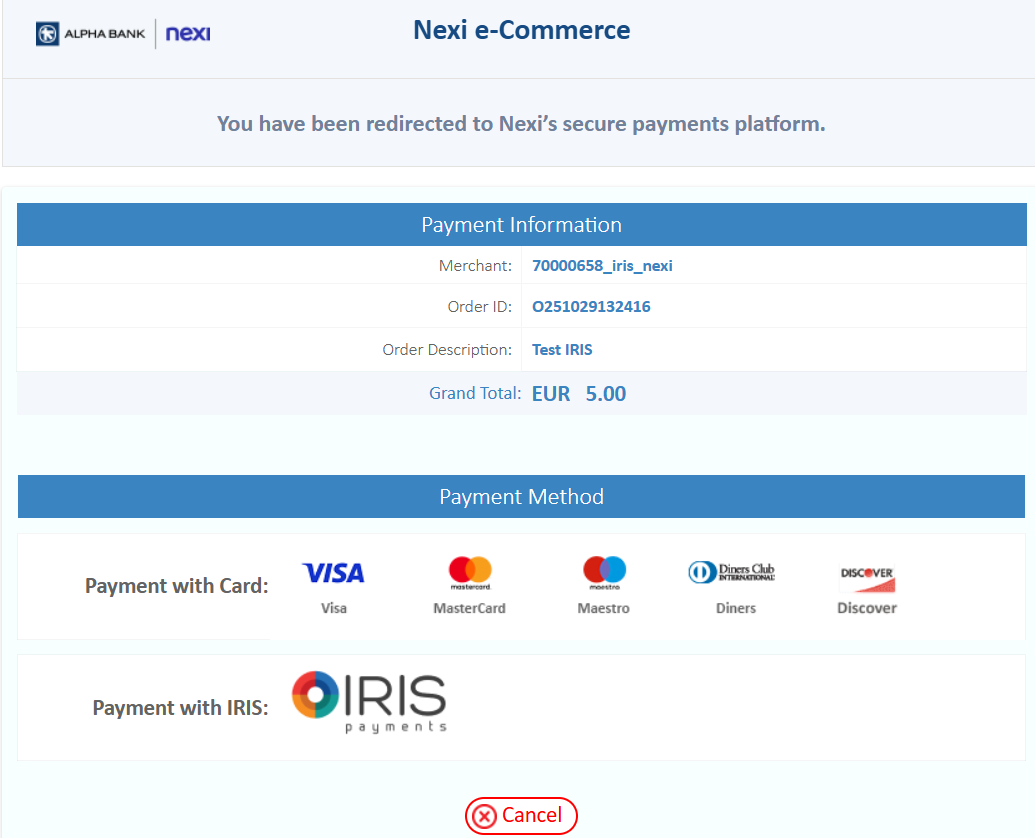
By default, the respective payment page will have the below view. If you are using a custom css with changes in colors/shapes/font/logos, please confirm during your tests that IRIS remains functional (check below on how to make test payments with IRIS).

If you are using a different/older payment page, you need to follow the below steps:

1. Register and/or log in Sandbox and create a new application with Business partner: Nexi and Integration method: Redirect.
2. Within the new app, go to section “Payment Page" and download the respective xsl/css files of the default payment page.
3. Customize those files the way you desire and upload them through the same section.
4. Once the custom payment page has been adjusted to your test mid, we will inform you to proceed with your tests.
5. Confirm through your tests the proper function of IRIS and let us know to adjust the custom payment page to your production MID as well.

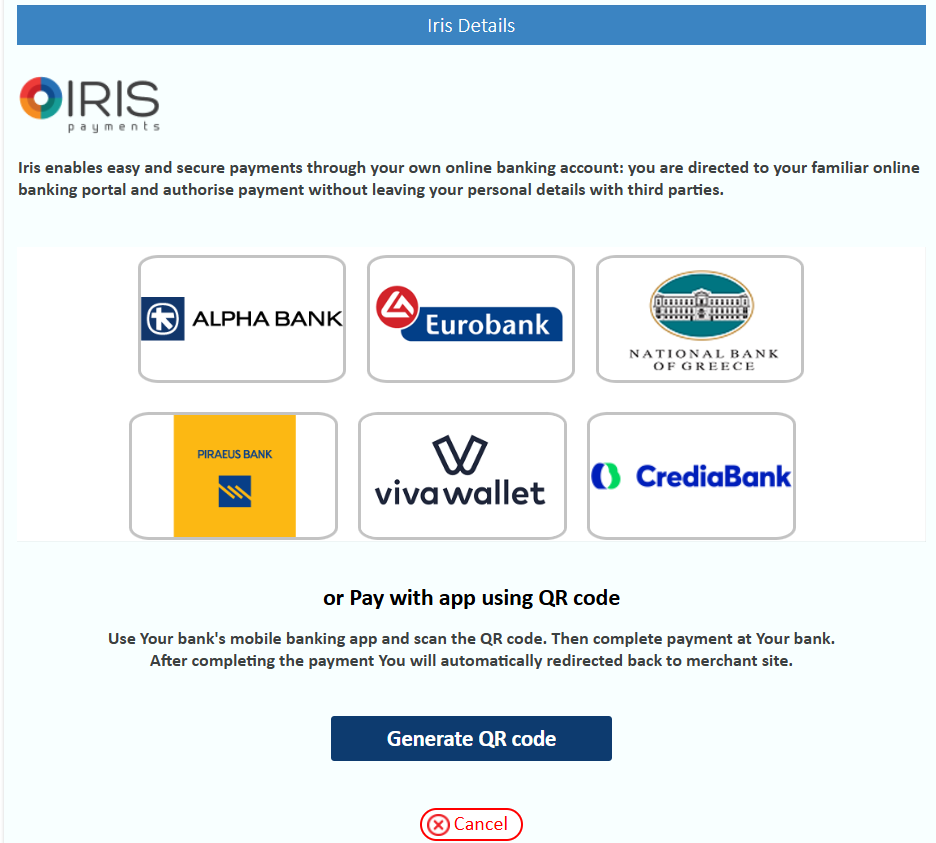
If you wish, you can provide IRIS as a separate payment method in your checkout page and declare that you wish the payment to be made through IRIS by using parameter payMethod=’IRIS’. By doing that, customer directly sees the page with Bank logos and QR generation and can choose how to proceed.

After a successful IRIS transaction, in the response message you will receive the respective parameter payMethod=’IRIS’.

For further information, please check here. Make sure you can handle all possible parameters included in the response message as described here.

Important notice 1: If you use one of our CMS plugins here, an updated version is available to support IRIS for Nexi, without the need to insert IRIS customer code (seller id).

Important notice 2: If you are already using IRIS through one of our plugins with a seller id, please do not install the new version. Also, if you automatically receive updates through the respective CMS marketplace, please do not proceed with the latest update. If you install the new version, the existing IRIS integration will not be functional and you should revert back to the version you previously had.

IRIS combined with XML (direct) integration for card transactions

If you are using XML (direct) integration for card transactions, you need to use Redirect integration for IRIS transactions, which will be by default activated for that purpose. Further technical details regarding Redirect integration can be found here.

How to test IRIS functionality

To begin with, you need to enable IRIS during a new app creation or through an existing app modification.
During new app creation, choose Nexi as Business partner and Redirect or Redirect/Direct as Model.

Post the respective request – using parameter payMethod=’IRIS’ if you wish – to open the payment page.
Choose the IRIS option to show IRIS details. If you use payMethod=’IRIS’, then you will be moved there directly.

In test environment, IRIS can be tested end to end only through QR generation. Redirection to e-banking is not supported.
Once you have generated the QR code, you do not use it through a banking mobile app, but you should expect the below results automatically after a few seconds (up to 120), based on the order amount.

Amount ending in Status
9 ERROR
8 REFUSED
anything else CAPTURED


Background confirmation

Background confirmation

In case you are using redirection to integrate with the payment gateway, there might be a transaction for which the response message will not reach your system. That might occur due to connection loss or browser termination from the user.

The most common solution to that issue is the use of a service, called background confirmation.

With that service, an exact copy of the initial response message is sent, within 120 seconds, from the payment gateway directly to your server. That is a server to server communication, without the risks of browser’s interference.

By default, the copy is sent to the same URL (confirm/cancel URL of the request) the initial response message was posted to, however there is also the option to set an alternative URL to receive all background confirmation requests.

Background confirmation is only sent once and there is no repeats if any error is returned from the merchant’s server.

Background confirmation does not somehow alter the already implemented integration, so there is no extra manual for that. If you wish to review the response message parameters, you may check the respective redirect documentation at https://developer.cardlink.gr/api_products_categories/redirect-integration/#Redirection.

Given that it is sent in every completed transaction (in every transaction a response message is initially sent), your system needs to be able to handle multiple responses for each order for the (most common) cases where the initial response message has successfully reached your server. If no initial response message has been sent, then the background confirmation will also not be sent.

Exception to the below rule (no initial response, no background confirmation) is an edge case of IRIS transactions. In case of an IRIS transaction where a customer is redirected to the e-banking, but never returns to the merchant’s site, the payment gateway asks for the transaction’s result upon transaction expiration (30 minutes). If the response states that the payment has been successful, then a background confirmation message is sent to merchant’s server. That occurs even if the service itself of background confirmation is not active in the merchant.

One way you could distinguish the background confirmation from the initial response message is the header “Modirum VPOS”.

The various statuses of a transaction that can be returned through background confirmation (as in the initial response message) can be found at https://developer.cardlink.gr/documentation_categories/response-codes/#VPOS-Transaction-Statuses.

Webhooks (Advice Messages)

Webhooks (Advice Messages)

Advice messages is a new value-added service that merchants can optionally configure if their backend system benefits from such notifications (XML requests).

Those XML messages refer to manual actions that can be performed upon a transaction through Back Office tool.

The manual actions through Back Office tool for which a respective message can be sent to the merchant are Capture of preauth, Void, Refund and Cancel recurring.

Moreover, advice message can also be sent for initial payment transaction and recurring child.

  • Primarily, it is mandatory to choose the XML version that e-commerce platform shall use for the XML message sent.
    If merchant’s implementation for VPOS requests is based on digest calculation, then 2.1 should be chosen.
    If merchant’s implementation for VPOS requests is based on signature calculation, then 4.1 could be chosen. If version 4.1 has been chosen, then the processor certificate should be used for the message validation.
  • Depending on the events a merchant needs to receive advice messages for, the respective value is filled in with the URL(s) that shall receive that message. Multiple URLs (up to 5) can be configured for each advice, separated with new line ‘\n’.
  • If one advice is left blank, then no message will be sent for that action.
  • It is also possible to configure retry options. If first sending fails (network error, not http 200), then after selected seconds, service will re-post the original advice message.

Description of message elements and fields and their usage

Field/request Type Description
Advice element A optional transaction advice message weebhook posted by service to merchant system urls.
Advice has attribute type that can have following values
Sale – advice of sale transaction has happened
Authorisation – advice of pre authorization has happened
Capture – advice of capture has happened
Cancel – advice of cancel (void/reversal) has happened
Refund – advice of refund has happened
Recurring .- advice of recurring child has happened
Authentication element Authentication element of request Message
Mid xsi:string (N1..8) Merchant number/identification in VPOS
Fields of original payment
OrderId element, xsi:string Original payment order id
OrderAmount element, xsi:decimal Original payment order amount
Currency element, xsi:string Original payment currency
OrderTxId element, xsi:string Original payment tx id
OrderTxStatus element, xsi:string Original payment payment status
PaymentTotal element, xsi:decimal Original payment payment total (if no fees or adjustments it equals order amount, but depending casr may be different)
Fields of secondary transaction
TxId element, xsi:string The secondary advice transaction id (eg capture, cancel, refund, recurring child)
TxStatus element, xsi:string The secondary advice transaction status
TxCurrency element, xsi:string The secondary advice transaction currncy
TxSequence element, xsi:integer Secondary recurring child transaction sequence number
TxPaymentRef element, xsi:string Secondary transaction paymenr refrence if available
Description element, xsi:string If secondary transaction then secondary transaction status description, if primary transaction then primary transaction status description

Table of field requirements depending on messages:
R – required, O-optional, C-conditional

Field element/requests Advice Description
Authentication
Mid R Merchant id number
Responses/Notification/Advice
OderId R Order Id supplied by merchant originally
OrderAmount R
PaymentTotal R
Currency R
OrderTxStatus R
TxId C Present if secondary transaction advice
TxStatus C Present if secondary transaction advice
TxCurrency C Present if secondary transaction advice
TxStatus C Present if secondary transaction advice
TxTotal C Present if secondary transaction advice
TxSequence C Present if recurring child advice
TxPaymentref O Present if secondary transaction advice and payment ref is available
Description O Primary or if secondary advice transaction status description
Digest R for version 2.1
Signature R for version 4.1

Examples of advice messages (version 2.1)

Recurring

XML
<?xml version="1.0" encoding="UTF-8" standalone="yes"?>
<VPOS xmlns="http://www.modirum.com/schemas/vposxmlapi41" xmlns:ns2="http://www.w3.org/2000/09/xmldsig#">
    <Message version="2.1" messageId="ADV92639546395243" timeStamp="2023-05-15T07:00:13.475+03:00">
        <Advice type="Recurring">
            <Authentication>
                <Mid>00000011</Mid>
            </Authentication>
            <OrderId>1683921187970</OrderId>
            <OrderAmount>1.25</OrderAmount>
            <Currency>EUR</Currency>
            <OrderTxId>92639546395033</OrderTxId>
            <OrderTxStatus>CAPTURED</OrderTxStatus>
            <PaymentTotal>1.25</PaymentTotal>
            <TxId>92639546395243</TxId>
            <TxStatus>CAPTURED</TxStatus>
            <TxTotal>1.25</TxTotal>
            <TxCurrency>EUR</TxCurrency>
            <TxSequence>4</TxSequence>
            <TxPaymentRef>106064</TxPaymentRef>
        </Advice>
    </Message>
    <Digest>bhVT41Y9P5M0N1N1fYc6z/GzKoDE4b1F7It/VNERQ7U=</Digest>
</VPOS>

Sale

XML
<?xml version="1.0" encoding="UTF-8" standalone="yes"?>
<VPOS xmlns="http://www.modirum.com/schemas/vposxmlapi41" xmlns:ns2="XML-Signature Syntax and Processing">
<Message> version="2.1" messageId="ADV92639551130871" timeStamp="2023-09-11T09:22:39.593+03:00">
    <Advice type="Sale">
        <Authentication>
            <Mid>9000002377</Mid>
        </Authentication>
        <OrderId>245T1694413345</OrderId>
        <OrderAmount>49.0</OrderAmount>
        <Currency>EUR</Currency>
        <OrderTxId>92639551130871</OrderTxId>
        <OrderTxStatus>CAPTURED</OrderTxStatus>
        <PaymentTotal>49.0</PaymentTotal>
        <TxId>92639551130871</TxId>
        <TxStatus>CAPTURED</TxStatus>
        <TxTotal>49.0</TxTotal>
        <TxCurrency>EUR</TxCurrency>
        <TxPaymentRef>106484</TxPaymentRef>
    </Advice>
    </Message>
    <Digest>ZoqBF+KPKzTllMYm11pLm7QQxE7d9mMc6HWQJib6H30=</Digest>
</VPOS>

Cancel

XML
<?xml version="1.0" encoding="UTF-8" standalone="yes"?>
<VPOS xmlns="http://www.modirum.com/schemas/vposxmlapi41" xmlns:ns2="http://www.w3.org/2000/09/xmldsig#">
    <Message version="2.1" messageId="ADV92639546395293" timeStamp="2023-05-15T11:56:39.961+03:00">
        <Advice type="Cancel">
            <Authentication>
                <Mid>00000011</Mid>
            </Authentication>
            <OrderId>1684140779809</OrderId>
            <OrderAmount>1.25</OrderAmount>
            <Currency>EUR</Currency>
            <OrderTxId>92639546395283</OrderTxId>
            <OrderTxStatus>VOID</OrderTxStatus>
            <PaymentTotal>1.25</PaymentTotal>
            <TxId>92639546395293</TxId>
            <TxStatus>AUTHORIZED</TxStatus>
            <TxTotal>1.25</TxTotal>
            <TxCurrency>EUR</TxCurrency>
            <TxPaymentRef>106140</TxPaymentRef>
        </Advice>
    </Message>
    <Digest>VCDJH6bV5l6g0BncJnXzSuFqkt90p6y9NTjqWfPo+qo=</Digest>
</VPOS>

Capture

XML
<?xml version="1.0" encoding="UTF-8" standalone="yes"?>
<VPOS xmlns="http://www.modirum.com/schemas/vposxmlapi41" xmlns:ns2="http://www.w3.org/2000/09/xmldsig#">
    <Message version="2.1" messageId="ADV92639546395313" timeStamp="2023-05-15T11:57:32.621+03:00">
        <Advice type="Capture">
            <Authentication>
                <Mid>00000011</Mid>
            </Authentication>
            <OrderId>1684141004711</OrderId>
            <OrderAmount>1.25</OrderAmount>
            <Currency>EUR</Currency>
            <OrderTxId>92639546395303</OrderTxId>
            <OrderTxStatus>CAPTURED</OrderTxStatus>
            <PaymentTotal>1.25</PaymentTotal>
            <TxId>92639546395313</TxId>
            <TxStatus>CAPTURED</TxStatus>
            <TxTotal>1.25</TxTotal>
            <TxCurrency>EUR</TxCurrency>
            <TxPaymentRef>106143</TxPaymentRef>
        </Advice>
    </Message>
    <Digest>AUjGoZ5iPNcaAdFt+65/cBr+iACetMYPnON3MkTUFAQ=</Digest>
</VPOS>

Refund

XML
<?xml version="1.0" encoding="UTF-8" standalone="yes"?>
<VPOS xmlns="http://www.modirum.com/schemas/vposxmlapi41" xmlns:ns2="http://www.w3.org/2000/09/xmldsig#">
    <Message version="2.1" messageId="ADV92639546395323" timeStamp="2023-05-15T12:19:27.925+03:00">
        <Advice type="Refund">
            <Authentication>
                <Mid>00000011</Mid>
            </Authentication>
            <OrderId>1683885240634</OrderId>
            <OrderAmount>55.0</OrderAmount>
            <Currency>EUR</Currency>
            <OrderTxId>92639546393423</OrderTxId>
            <OrderTxStatus>REFUNDED</OrderTxStatus>
            <PaymentTotal>55.0</PaymentTotal>
            <TxId>92639546395323</TxId>
            <TxStatus>CAPTURED</TxStatus>
            <TxTotal>55.0</TxTotal>
            <TxCurrency>EUR</TxCurrency>
            <TxPaymentRef>105087</TxPaymentRef>
        </Advice>
    </Message>
    <Digest>r114HENsu6FMUbldS2HLwjB8U6gt4qaBP4Am7AetIHA=</Digest>
</VPOS>

Example of advice messages (version 4.1)

Payment

XML
<VPOS xmlns="http://www.modirum.com/schemas/vposxmlapi41" xmlns:ns2="http://www.w3.org/2000/09/xmldsig#">
<Message messageId="ADV9263957539012" timeStamp="2023-01-24T12:20:00.446+02:00" version="4.1">
    <Advice type="Sale">
        <Authentication>
            <Mid>0000001</Mid>
        </Authentication>
        <OrderId>1674555536072</OrderId>
        <OrderAmount>1.25</OrderAmount>
        <Currency>EUR</Currency>
        <OrderTxId>9263957539012</OrderTxId>
        <OrderTxStatus>CAPTURED</OrderTxStatus>
        <PaymentTotal>1.25</PaymentTotal>
    </Advice>
</Message>
<ds:Signature xmlns:ds="http://www.w3.org/2000/09/xmldsig#">
    <ds:SignedInfo>
        <ds:CanonicalizationMethod Algorithm="http://www.w3.org/TR/2001/REC-xml-c14n-20010315"/>
        <ds:SignatureMethod Algorithm="http://www.w3.org/2001/04/xmldsig-more#rsa-sha256"/>
        <ds:Reference URI="#ADV9263957539012">
        <ds:DigestMethod Algorithm="http://www.w3.org/2001/04/xmlenc#sha256"/>
        <ds:DigestValue>7dsQK6oP4Nt8ID2hjx8Bndz6zvjH2jsceXAkrGgtK4k=</ds:DigestValue>
        </ds:Reference>
    </ds:SignedInfo>
    <ds:SignatureValue>
    DVUwOzyb………………………………………………………..2jHJq
    </ds:SignatureValue>
    <ds:KeyInfo>
    <ds:X509Data>
    <ds:X509Certificate>
    MIIEbTCCAtWgAwIBAgIGAWq1Rs+nMA0GCSqGSIb3DQEBCwUAMG8xHzAdBgNVBAMTFkNhcmRsaW5r
    …………………………….
    bOu+/oza5EYKMpA1Mu3QWtb3hwiwogdlZnNxfpFhugqLNKmyWs/vHH/DGJAG1eKNwqTVb+MY
    </ds:X509Certificate>
    </ds:X509Data>
    </ds:KeyInfo>
</ds:Signature>
</VPOS>

Refund

XML
<VPOS xmlns="http://www.modirum.com/schemas/vposxmlapi41" xmlns:ns2="http://www.w3.org/2000/09/xmldsig#">
    <Message messageId="ADV9263957539052" timeStamp="2023-01-24T12:32:32.072+02:00" version="4.1">
        <Advice type="Refund">
            <Authentication>
                <Mid>0000001</Mid>
            </Authentication>
            <OrderId>O221109112656</OrderId>
            <OrderAmount>0.12</OrderAmount>
            <Currency>EUR</Currency>
            <OrderTxId>9263957525292</OrderTxId>
            <OrderTxStatus>REFUNDED</OrderTxStatus>
            <PaymentTotal>0.12</PaymentTotal>
            <TxId>9263957539052</TxId>
            <TxStatus>CAPTURED</TxStatus>
            <TxTotal>0.12</TxTotal>
            <TxCurrency>EUR</TxCurrency>
            <TxPaymentRef>109923</TxPaymentRef>
        </Advice>
    </Message>
    <ds:Signature xmlns:ds="http://www.w3.org/2000/09/xmldsig#">
        <ds:SignedInfo>
            <ds:CanonicalizationMethod Algorithm="http://www.w3.org/TR/2001/REC-xml-c14n-20010315"/>
            <ds:SignatureMethod Algorithm="http://www.w3.org/2001/04/xmldsig-more#rsa-sha256"/>
            <ds:Reference URI="#ADV9263957539052">
            <ds:DigestMethod Algorithm="http://www.w3.org/2001/04/xmlenc#sha256"/>
            <ds:DigestValue>R9qqW1er3iWSfI8kkc9uFF2srKxmF3Y9W4LfS0OmaX8=</ds:DigestValue>
            </ds:Reference>
        </ds:SignedInfo>
        <ds:SignatureValue>
        HcXB6Gq4dPI1oO1T……….E8MAQOKe
        </ds:SignatureValue>
        <ds:KeyInfo>
            <ds:X509Data>
            <ds:X509Certificate>
            MIIEbTCCAtWgAwIBAgIGAWq1……NwqTVb+MY
            </ds:X509Certificate>
            </ds:X509Data>
        </ds:KeyInfo>
    </ds:Signature>
</VPOS>
Response Codes

VPOS Transaction Statuses

AUTHORIZED: Approved Transaction
AUTHORISED-EXPIRED: Preauthorized Transaction which has expired.
CAPTURED : Successful Transaction for payments and for capture of pre-auth transactions
COMPLETE: Successful transaction for token creation
CAPTURED PARTIALLY: Successful Capture of Pre-auth where Capture amount < authorization amount
PREPROCESS: The transaction has been initiated, the payer is in payment page’s environment
INAUTHENTICATION: 3D Authentication has been initiated
CANCELLED: Payer cancelled the transaction
INPAYMENT: Transaction is in approval process
ERROR: Transaction has not been completed due to systemic errors
REFUSED: Rejected transaction
PREPROCESS-TIMEDOUT/ INAUTHENTICATION-TIMEDOUT / ERROR-TIMEDOUT/INWALLET-TIMEDOUT/INPAYMENT-TIMEDOUT/PROCESSING-TIMEDOUT: Transaction lifetime has ended
REFUNDED: Total amount has been returned to payer
REFUNDED PARTIALLY: Partial amount has been returned to payer
REVERSED: Merchant cancelled the pre-auth transaction
VOID: Payment/Capture of preauth transaction which has been cancelled by the merchant
TIMEDOUT: IRIS transaction lifetime has ended
INWALLET: A digital wallet (Apple Pay/Google Pay) has been opened

Authorization Response Codes (ISO Response Codes)

Below are available all the possible iso response code a transaction may receive will the Authorisation process has been initiated.

00 APPROVED OR COMPLETED SUCCESSFULLY
01 REFER TO CARD ISSUER
02 REFER TO SPECIAL CONDITIONS FOR CARD ISSUER
03 INVALID MERCHANT
04 PICK-UP
05 DO NOT HONOR
06 ERROR
08 HONOR WITH IDENTIFICATION
11 APPROVED (VIP)
12 INVALID TRANSACTION
13 INVALID AMOUNT
14 INVALID CARD NUMBER (NO SUCH NUMBER)
15 NO SUCH ISSUER
30 FORMAT ERROR
31 BANK NOT SUPPORTED BY SWITCH
33 EXPIRED CARD
36 RESTRICTED CARD
38 ALLOWABLE PIN TRIES EXCEEDED
41 LOST CARD
43 STOLEN CARD, PICK UP
51 NOT SUFFICIENT FUND
54 EXPIRED CARD
55 INCORRECT PERSONAL IDENTIFICATION NUMBER
56 NO RECORD FOUND
57 TRANSACTION NOT PERMITTED TO CARDHOLDER
61 EXCEEDS WITHDRAWAL AMOUNT LIMIT
62 RESTRICTED CARD
65 EXCEEDS WITHDRAWAL FREQUENCY LIMIT
68 RESPONSE RECEIVED TOO LATE
75 ALLOWABLE NUMBER OF PIN TRIES EXCEEDED
76 APPROVED COUNTRY CLUB
77 APPROVED PENDING IDENTIFICATION (SIGN PAPER DRAFT)
78 APPROVED BLIND
79 APPROVED ADMINISTRATIVE TRANSACTION
80 APPROVED NATIONAL NEG HIT OK
81 APPROVED COMMERCIAL
82 RESERVED FOR PRIVATE USE
83 NO ACCOUNTS
84 NO PBF
85 PBF UPDATE ERROR
86 INVALID AUTHORIZATION TYPE
87 BAD TRACK DATA
88 PTLF ERROR
89 INVALID ROUTE SERVICE
94 DUPLICATE TRANSACTION
N0 UNABLE TO AUTHORIZE
N1 INVALID PAN LENGTH
N2 PREAUTHORIZATION FULL
N3 MAXIMUM ONLINE REFUND REACHED
N4 MAXIMUM OFFLINE REFUND REACHED
N5 MAXIMUM CREDIT PER REFUND REACHED
N6 MAXIMUM REFUND CREDIT REACHED
N7 CUSTOMER SELECTED NEGATIVE FILE REASON
N8 OVER FLOOR LIMIT
N9 MAXIMUM NUMBER OF REFUND CREDIT
O1 FILE PROBLEM
O2 ADVANCE LESS THAN MINIMUM
O3 DELINQUENT
O4 OVER LIMIT TABLE
O5 PIN REQUIRED
O6 MOD 10 CHECK
O7 FORCE POST
O8 BAD PBF
O9 NEG FILE PROBLEM
P0 CAF PROBLEM
P1 OVER DAILY LIMIT
P2 CAPF NOT FOUND
P3 ADVANCE LESS THAN MINIMUM
P4 NUMBER TIMES USED
P5 DELINQUENT
P6 OVER LIMIT TABLE
P7 ADVANCE LESS THAN MINIMUM
P8 ADMINISTRATIVE CARD NEEDED
P9 ENTER LESSER AMOUNT
Q0 INVALID TRANSACTION DATE
Q1 INVALID EXPIRATION DATE
Q2 INVALID TRANSACTION CODE
Q3 ADVANCE LESS THAN MINIMUM
Q4 NUMBER TIMES USED
Q5 DELINQUENT
Q6 OVER LIMIT TABLE
Q7 AMOUNT OVER MAXIMUM
Q8 ADMINISTRATIVE CARD NOT
Q9 ADMINISTRATIVE CARD NOT
R0 APPROVED ADMINISTRATIVE
R1 APPROVED ADMINISTRATIVE
R2 APPROVED ADMINISTRATIVE
R3 CHARGEBACK, CUSTOMER FILE
R4 CHARGEBACK, CUSTOMER FILE
R5 CHARGEBACK, INCORRECT
R6 CHARGEBACK, INCORRECT
R7 ADMINISTRATIVE TRANSACTIONS
R8 CARD ON NATIONAL NEGATIVE FILE
S4 PTLF FULL
S5 CHARGEBACK APPROVED
S6 CHARGEBACK APPROVED
S7 CHARGEBACK ACCEPTED
S8 ADMN FILE PROBLEM
S9 UNABLE TO VALIDATE PIN; SECURITY MODULE IS DOWN
T1 INVALID CREDIT CARD ADVANCE INCREMENT
T2 INVALID TRANSACTION DATE
T3 CARD NOT SUPPORTED
T4 AMOUNT OVER MAXIMUM
T5 CAF STATUS = 0 OR 9
T6 BAD UAF
T7 CASH BACK EXCEEDS DAILY
T8 INVALID ACCOUNT
Test Cards

Test Cards 3DS2

Expiration date: A valid future date of your preference.
CVV: A random 3-digit code of your preference (e.g. 123, 345, 156 etc).
Cardholder name: You may use any name you wish.

3D status “Fully authenticated": Transactions approved

3D status “Not authenticated": Transactions rejected

In order to receive a refusal from the authorization, use order amount with format [10,refusal_code] and fully authenticated test card.
For example, to have a refused transaction with refusal code 51-NOT SUFFICIENT FUND, use order amount 10,51.

Other indicative refusal codes for potential tests:

05 DO NOT HONOR
54 EXPIRED CARD
57 TRANSACTION NOT PERMITTED TO CARDHOLDER

Mastercard:

3D status
5188340000000011 Frictionless Y (Fully authenticated)
5188340000000029 Frictionless N (Not authenticated)
5188340000000037 Frictionless A (Attempt)
5188340000000003 Challenge – Password: Secret!33
5188340000000060 Challenge flow multiple statuses (Y, N, A, U, R) (customer chooses which of the above conditions will match)


Visa:

3D status
4016360000000010 Frictionless Y (Fully authenticated)
4016360000000028 Frictionless N (Not authenticated)
4016360000000044 Frictionless A (Attempt)
4016360000000002 Challenge – Password: Secret!33
4016360000000093 Challenge flow multiple statuses (Y, N, A, U, R) (customer chooses which of the above conditions will match)


AMEX (Not applicable for Worldline/Cardlink One Business Partner):

3D status
376206000000009 Frictionless Y (Fully authenticated)
376206000000025 Frictionless N (Not authenticated)
376206000000017 Frictionless A (Attempt)
376206000000058 Challenge – Password: Secret!33
376206000000066 Challenge flow multiple statuses (Y, N, A, U, R) (customer chooses which of the above conditions will match)


Diners (Not applicable for Worldline/Cardlink One Business Partner):

3D status
36849800000265 Frictionless Y (Fully authenticated)
3621380390375060 Challenge flow multiple statuses (Y, N, A, U, R) (customer chooses which of the above conditions will match)
36343416739482162 Challenge – Password: Secret123!


Discover (Not applicable for Worldline/Cardlink One Business Partner):

3D status
6011000990139424 Frictionless Y (Fully authenticated)
6011485500612731 Challenge flow – Password: Secret!33