










PayPal is a widely used digital payment platform that enables businesses to securely accept payments from customers worldwide. In e-commerce, PayPal serves as both a payment gateway and a wallet solution, allowing users to pay using their PayPal balance, linked bank accounts, or credit and debit cards.
Customers can complete transactions quickly without repeatedly entering their payment details, which helps reduce cart abandonment and improve conversion rates.
By leveraging PayPal, merchants can provide a trusted and familiar payment option while maintaining high standards of security and compliance.
Buyer Payment Flow
The buyer selects PayPal as the payment method on the payment page.
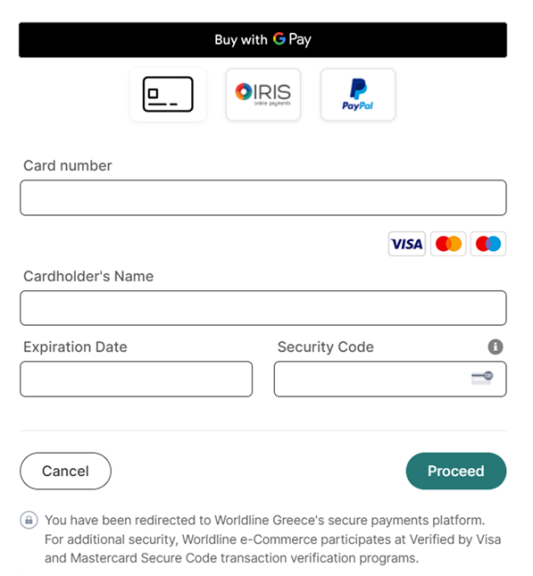
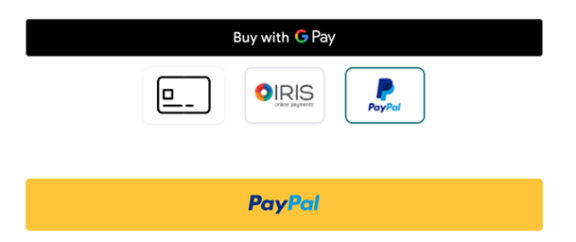
The system opens the PayPal checkout sheet (PayPal popup). The buyer is redirected to PayPal’s secure environment where a log in is required with buyer’s PayPal account credentials.
Once the payment is completed, the buyer is redirected back to merchant’s site.
- PayPal is available only for Payment (once off) transactions.
- Refund action is supported through e-commerce platform (API or back office) for PayPal transactions.
How to test PayPal
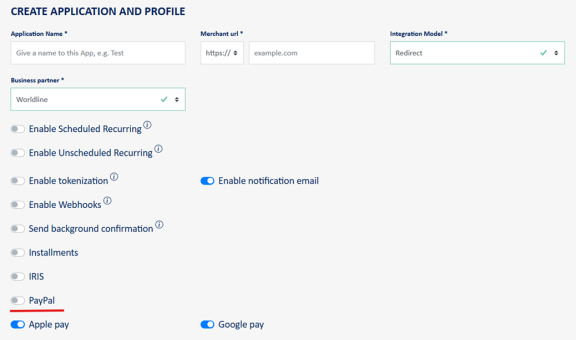
Create a new app with Business partner: Worldline and Integration Model: Redirect or Redirect/Direct or Payment link via API (XML).
Select PayPal feature to be activated.
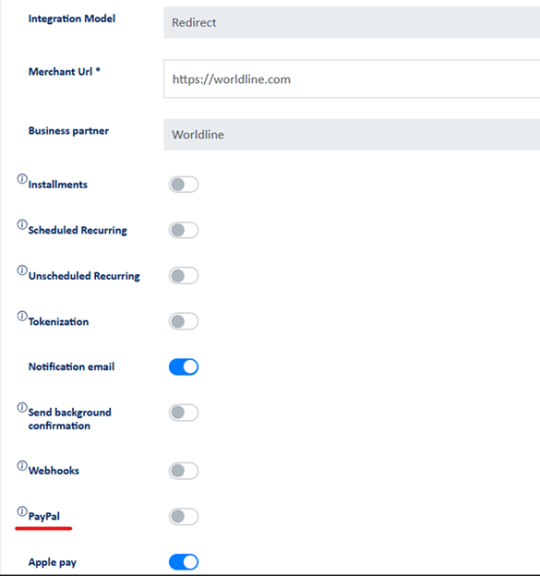
In an existing app, enable PayPal through Configuration section.
For transaction execution, select PayPal within the payment page (as described in buyer’s flow above) and use the below credentials to complete the payment.
email: sb-wgfhy39296169@personal.example.com
password: 4ESs9VA+
Important notice: Upon successful completion of the PayPal transaction, the payMethod parameter in the response message will have the value ‘PayPalREST’.
How to activate PayPal in production environment
Once you log into back-office tool (credentials will be sent to the merchant upon production activation), navigate to merchant profile, PayPal section.

Click “Connect to PayPal” and you will be redirected to PayPal login page where you log into your PayPal account and follow each step of the process.

Once you have completed the respective steps, you need to perform the below actions to successfully enable PayPal feature in your merchant profile.
- Click to “return to website”
- Verify your e-mail (if required)
Merchant request optional additions
For PayPal transactions, merchant can optionally include in the payment request the below:
- Shipping address fields: Especially when product will be shipped, merchant should include parameters shipCountry, shipZip, shipCity and shipAddress as described at https://developer.cardlink.gr/api_products_categories/redirect-integration/#Request-message-for-payment-initiation.
- Line items based on the products/services of the respective order. Below you may find a table that describes the fields that form those line items. The formed line-item value should be included in one of the parameters var1..9. An indicative line-item value for an order of 2 products and total amount 10€ is [{“n":"Products","cd":"67","p":"5","q":"2","c":"TA"}].
Line items can be combination of arrays of multiple var parameters, e.g., first 10 items on var2 and next 10 items on var3. Then var3 line items are appended to line items on var2.
| Counter | Property name | Type | Required/Optional | Description |
| 1. | n | string 1..64 | R | Name |
| 2. | cd | string 1..32 | R | Product code |
| 3. | p | number decimal | R | Unit price (in order currency), tax included |
| 4. | q | number integer | R | Quantity of that line item Line-item row total = p * q (tax included) |
| 5. | t | number decimal | O | Tax (in order currency, for that item included in price, not added to). Missing on item type tax Order amount of the request must be equal with the total price*quantity |
| 6. | c | string 2 | R | Product/item category DI – digital subscriptions or services TA – tangible/physical items shipped DO – donations DC – discount (amount positive) SH – shipping TX – tax item (total tax add as last item, if multiple tax items, then sum of tax items must be sum of taxes) |
| 7. | sku | string 1..16 | O | Product stock unit description In case of c=SH this is shipping descriptor S – shipping to delivery address P – pickup from store I – in person shipping (buyer picks up from seller in person) Typically, this can be manufacturer product code. |
| 8. | u | string 9..255, https:// | O | Item URL In case of shipping item this shall be person name to whom delivered. |
| 9. | iu | string 9..255, https:// | O | Item image URL |
| 10. | upct | string 1..5 | O | The Universal Product Code of the item |
| 11. | upcc | string 6..17 | O | The Universal Product Code of the item. (code) Required if upct is provided. |
Tax item is sum of each item tax * each item quantity
Order total shall be equal to sum of line-items (p*q) – discount items + shipping
Tax item shall be sum of line-items t * quantity
Recommended max 100 line-items per order, minimum at least one line-item. If physical goods shipping, line-item should be sent even if products are free.
Values for upct: UPC-A, UPC-B,UPC-C,UPC-D,UPC-E,UPC-2,UPC-5